Document Translator
Document Translator is a built-in AI-powered feature on the Melp web platform that enables you to translate documents into 28 languages and automatically redact personally identifiable information (PII), all without leaving Melp.
Accessible from three different entry points across the Melp platform:
- Dashboard
- Melp Drive
- Chat
Document Translator combines two powerful capabilities in a single, streamlined workflow.
Whether you are distributing an internal report to a global team or sharing a contract with an overseas partner, Document Translator processes your document and protects sensitive data in just a few clicks.
Capability
| Capability | What It Does |
|---|---|
| Document Translation | Upload a document (PDF, DOCX, TXT, ODT, or MD) and select from 28 supported languages. Melp translates the full document and delivers the output for download or saving to Melp Drive. This is an independent action. |
| PII Redaction | Upload a document and Melp scans it for personally identifiable information — names, phone numbers, email addresses, ID numbers — and masks them automatically. The redacted file can be downloaded or saved to Drive. This is a separate, independent action from Translation. |
Why Use Document Translator?
Document Translator addresses two of the most critical challenges in modern workplace communication — language barriers and data privacy.
Here is why teams across organisations rely on it:
Benefits
| Benefit | Description |
|---|---|
| Break Language Barriers | Translate documents instantly into 28 languages — no third-party tools required. Share reports, contracts, and announcements across multilingual teams without delay. |
| Protect Confidential Data | Automatically redact PII — names, contact details, ID numbers — before sharing documents externally. Reduce data exposure risk with built-in privacy controls. |
| Save Time | Access Document Translator from three points in Melp. Upload once, select your action, and download or save to Drive directly. No separate tools needed. |
How to Access Document Translator
Document Translator can be accessed from three different locations within the Melp platform.
Choose the access point that best suits your current workflow.
| Entry Point | How to Access |
|---|---|
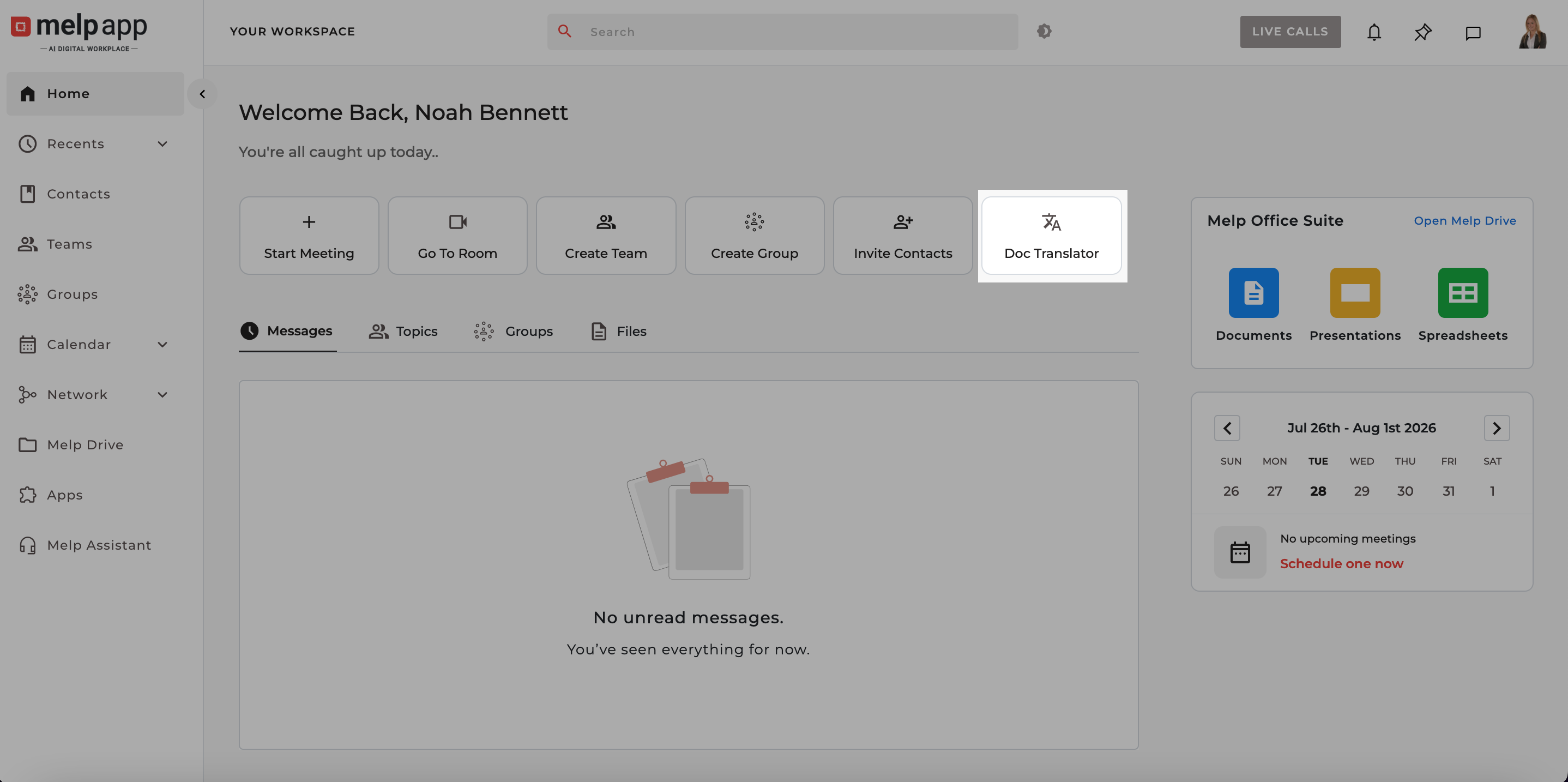
| Dashboard | Click the Doc Translator shortcut button on the Dashboard home screen. |
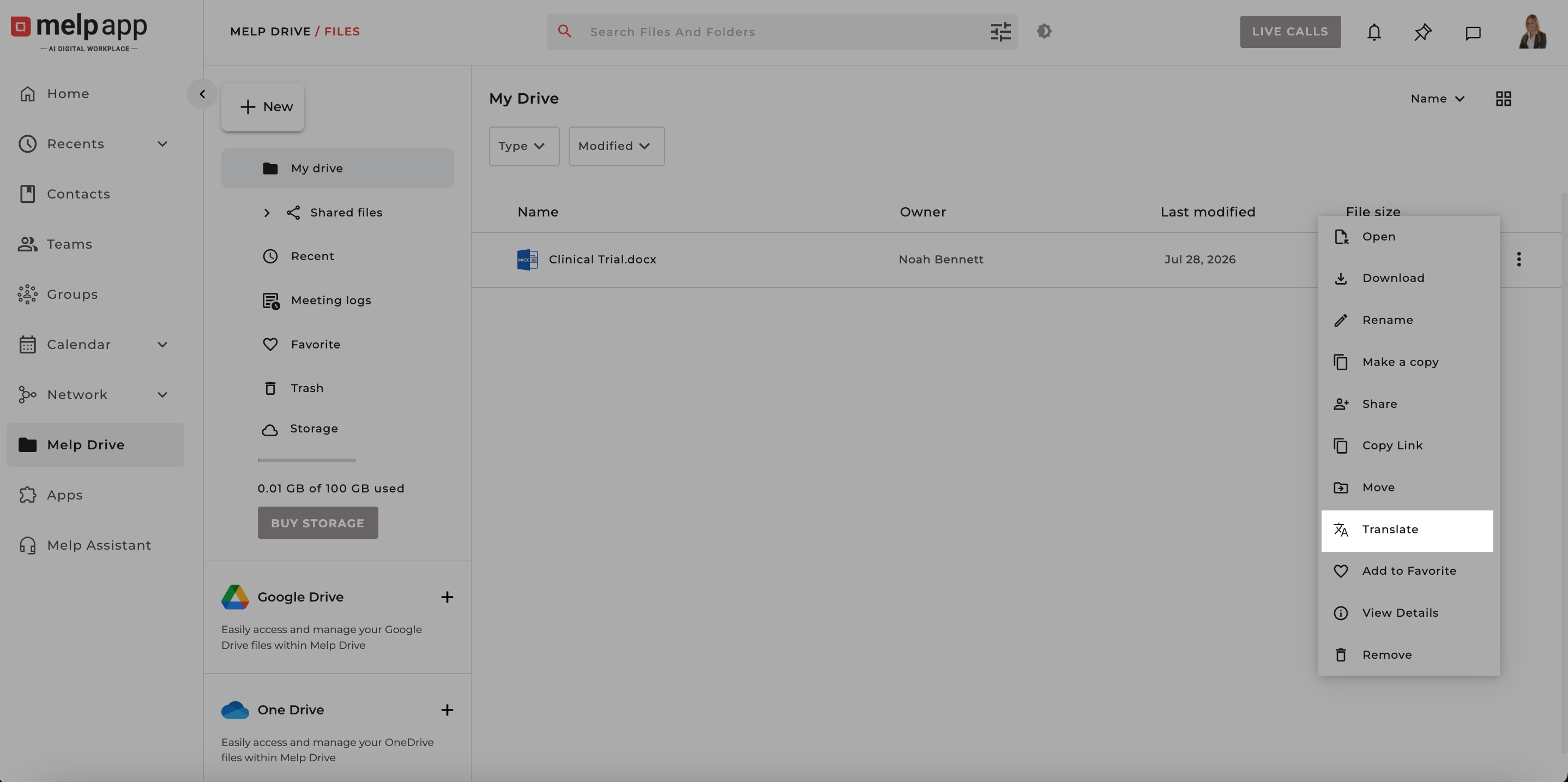
| Melp Drive | Hover over a file, click the three-dot (⋯) More Options menu, and select Translate. |
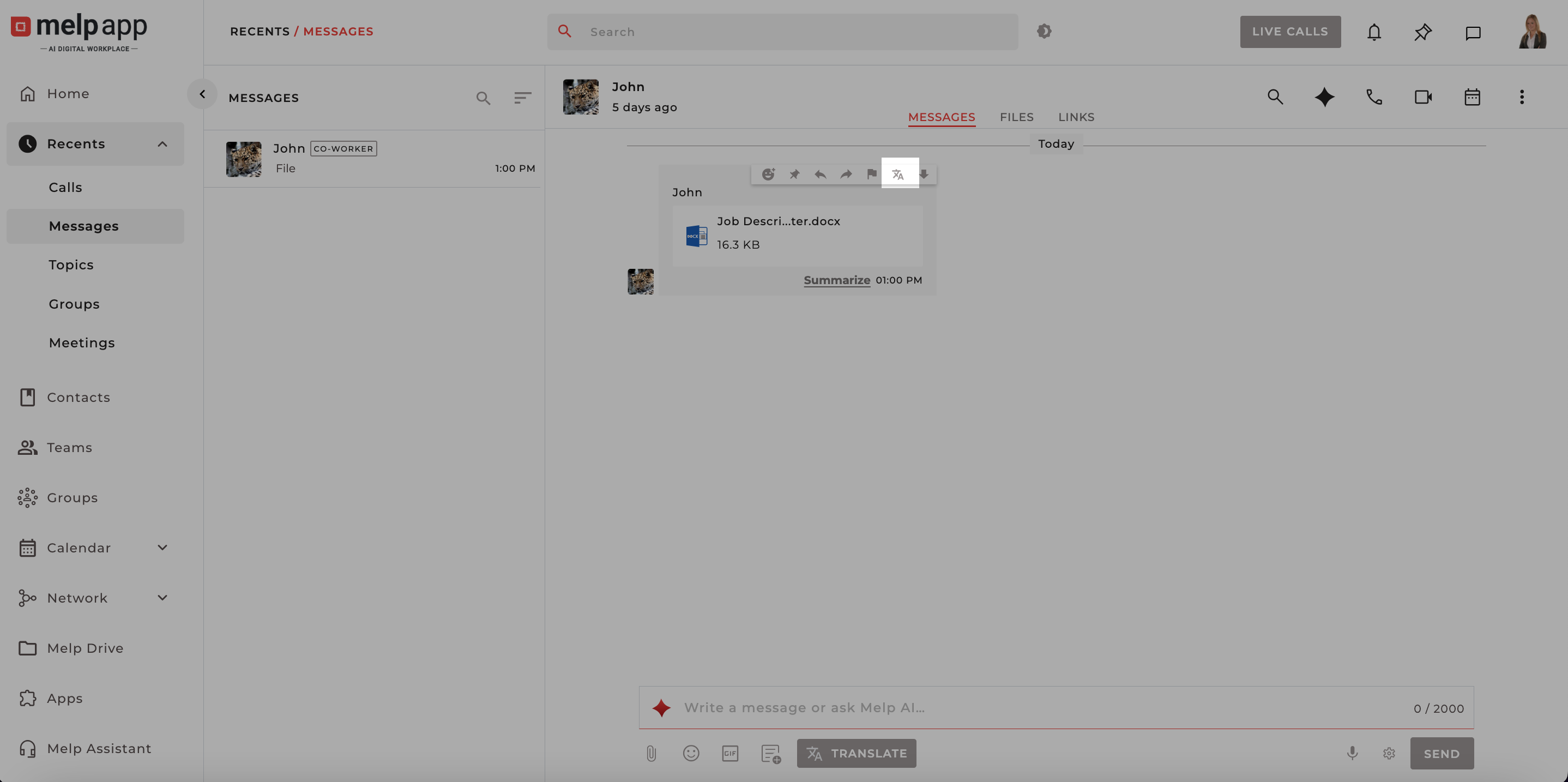
| Chat | Hover over a document shared in a chat message and click the Document Translator icon that appears on hover. |
Access from Dashboard
The Dashboard provides the quickest entry point to Document Translator through a dedicated shortcut button on the Melp home screen.
-
Log in to Melp. You land on the Dashboard home screen showing workspace shortcuts and quick-access tools.
-
In the top row of shortcut buttons on the Dashboard, click the Doc Translator button (translation icon).
-
The Translate Document modal opens and upload your file, select the target language, and click: Upload & Translate Or switch to the Redact PII tab if you need to mask sensitive information.
Access from Melp Drive
Launch Document Translator directly from a file stored in Melp Drive.
This access point pre-loads the selected file automatically — skipping the upload step entirely.
-
Click Melp Drive in the left-hand navigation sidebar to open your file library.
-
Move your cursor over the document file you want to translate or redact.
-
Click the More Options icon (three dots) that appears on the right side of the file row.
-
From the dropdown context menu, click Translate. Document Translator opens with the selected file already loaded and ready to process.
-
Select your target language and click: Translate or switch to the Redact PII tab and click: Scan & Redact
-
Once processing is complete: Click Download to save the file to your device or click Save to Drive to store the output directly in Melp Drive.
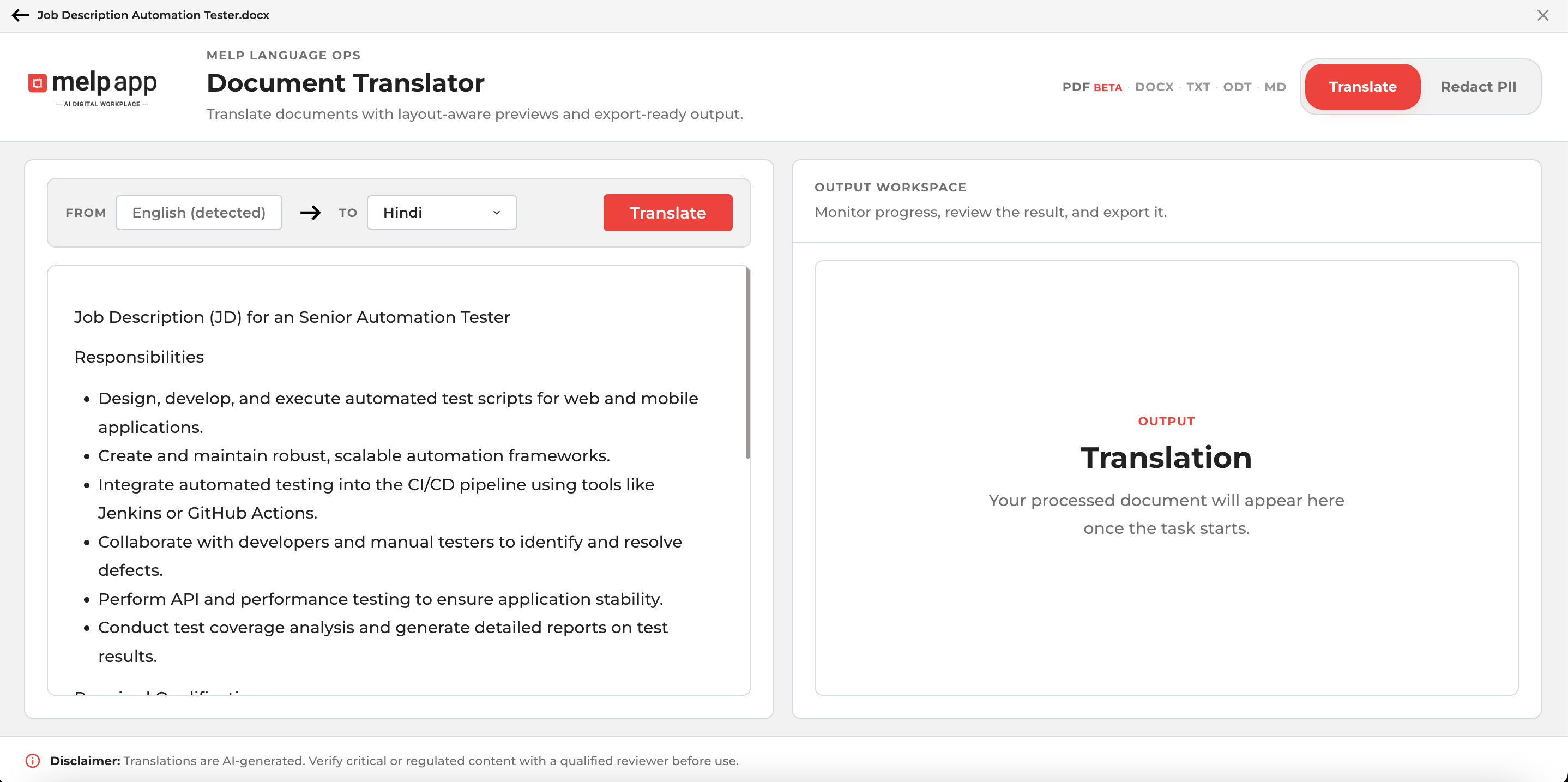
Accessing Document Translator from Melp Drive pre-loads the selected file automatically — you skip the upload step entirely and go straight to selecting your action.
Access from Chat
When a document has been shared in a Melp chat message — in a 1-on-1 message, Team, or Group — you can launch Document Translator directly from the message without navigating away from the conversation.
-
Navigate to Messages in the left sidebar and open a chat conversation that contains a shared document.
-
Move your cursor over the document attachment in the chat message. A set of action icons appears on hover above or beside the attachment.
-
Click the Document Translator icon (translation symbol) from the hover toolbar. The icon appears alongside other file actions such as: Download, Forward
-
Document Translator opens with the shared document already loaded and ready to process.
-
Select your target language and click: Translate or switch to: Redact PII and click Scan & Redact
-
Once processing is complete: Click Download to save locally and click Save to Drive to store the output in Melp Drive.
Accessing Document Translator from Chat pre-loads the shared document automatically.
You can translate or redact a document received in a message without leaving the conversation.
Translating a Document
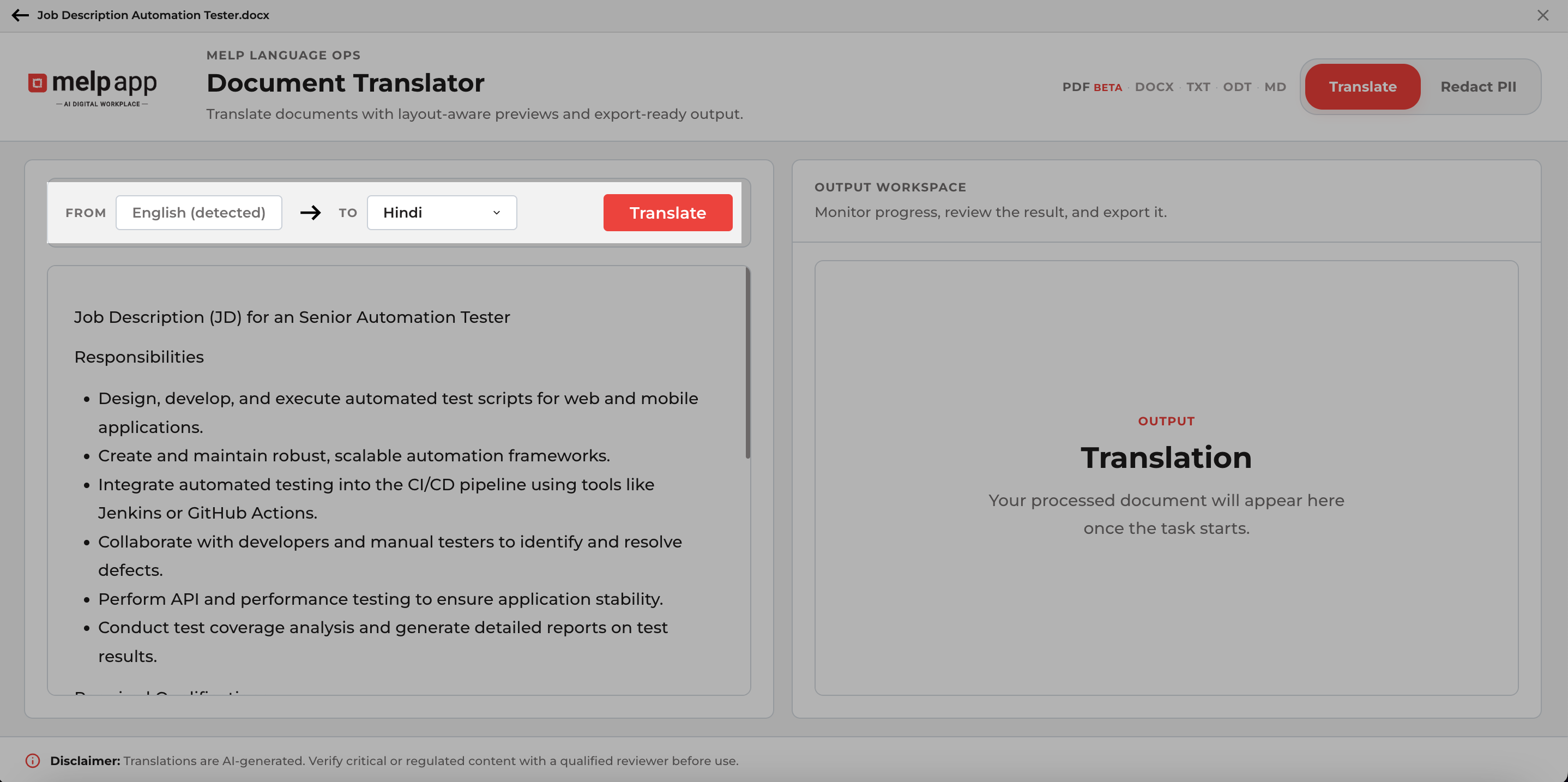
Use the Translate Document mode to convert your document into any of 28 supported languages.
The translation is powered by AI and delivers output that mirrors the structure and formatting of the original document.
Step-by-Step
-
Drag and drop your file into the upload zone or click Browse to select it from your device.
-
The FROM field is set to Auto-detect by default. Melp automatically identifies the document's language and you can also manually select the source language if preferred.
-
Click the TO dropdown and choose your desired output language from the 28 available options.
-
Press the Translate button. A real-time progress indicator appears in the Output Workspace showing the percentage of translation complete.
-
Once complete, the translated document preview appears in the Output Workspace on the right side of the screen. Review the output for accuracy before exporting.
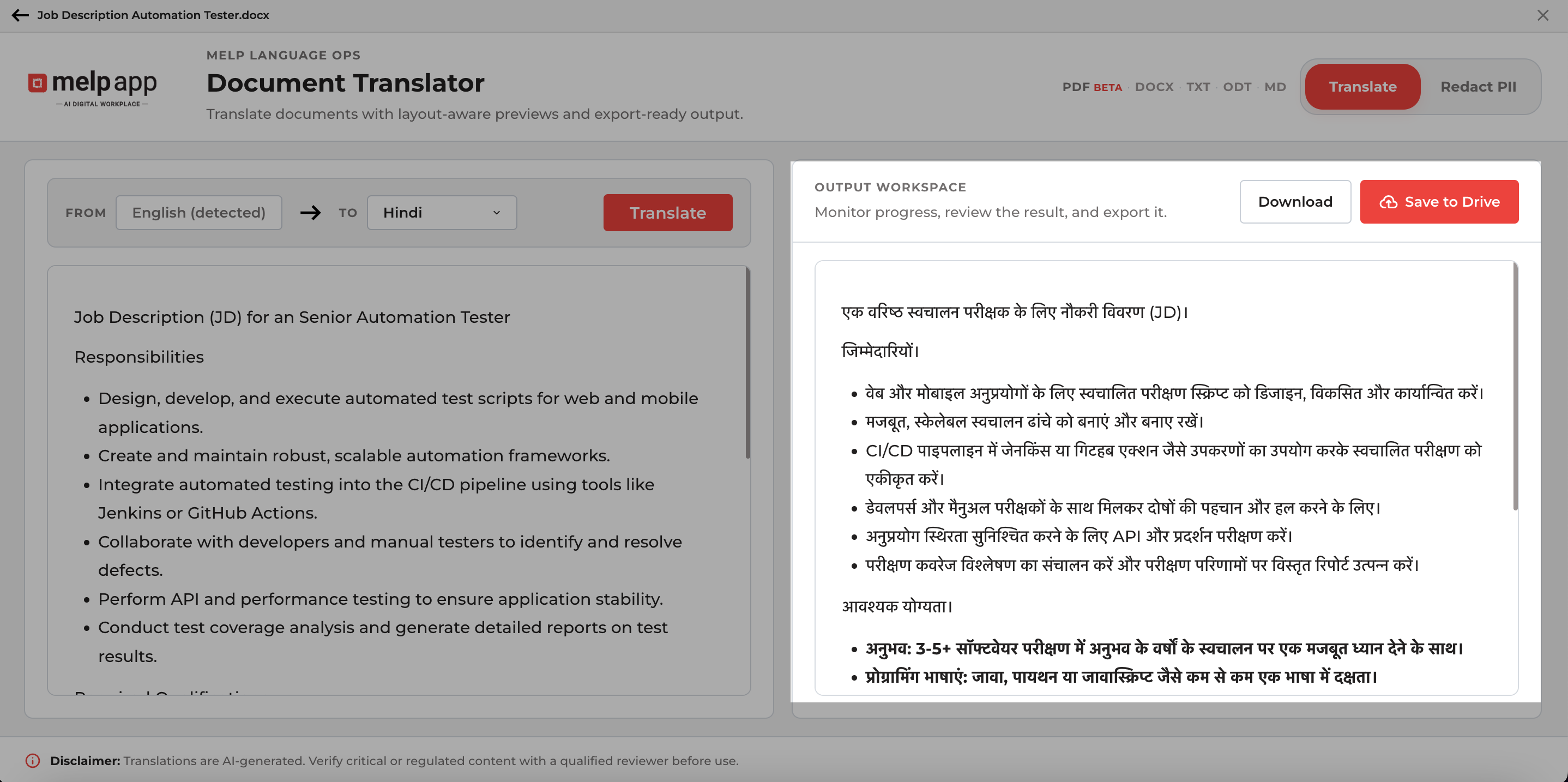
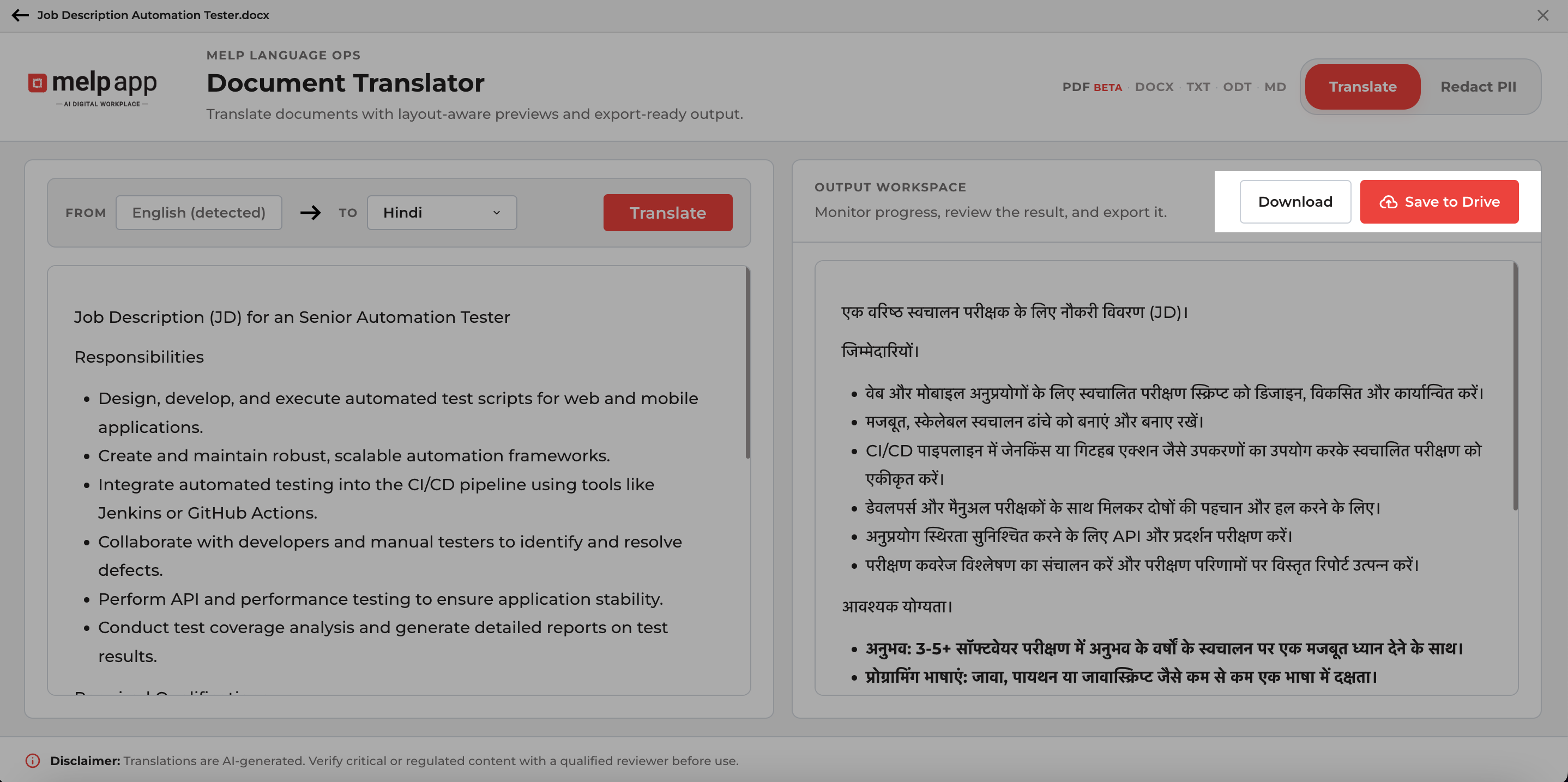
- Export your result click Download to save the translated document to your device and Save to Drive to store it in Melp Drive for team access.
Supported Languages (28)
Document Translator supports translation into and from the following 28 languages:
| Language | Language | Language | Language |
|---|---|---|---|
| English (EN) | German (DE) | French (FR) | Spanish (ES) |
| Italian (IT) | Portuguese (PT) | Turkish (TR) | Polish (PL) |
| Dutch (NL) | Swedish (SV) | Norwegian (NO) | Finnish (FI) |
| Czech (CS) | Romanian (RO) | Hungarian (HU) | Russian (RU) |
| Ukrainian (UK) | Bulgarian (BG) | Greek (EL) | Hindi (HI) |
| Tamil (TA) | Telugu (TE) | Urdu (UR) | Chinese (ZH) |
| Japanese (JA) | Korean (KO) | Arabic (AR) | Latin (LA) |
Redacting PII
Use the Redact PII mode to automatically detect and mask personally identifiable information in your document before sharing it internally or externally.
This protects individuals' privacy and supports your organisation's data compliance requirements.
Step-by-Step
-
Drag and drop your file into the upload zone or click Browse to select it.
-
Click the Redact PII button in the top-right toolbar of the Document Translator screen. This switches from Translate mode to Redact PII mode.
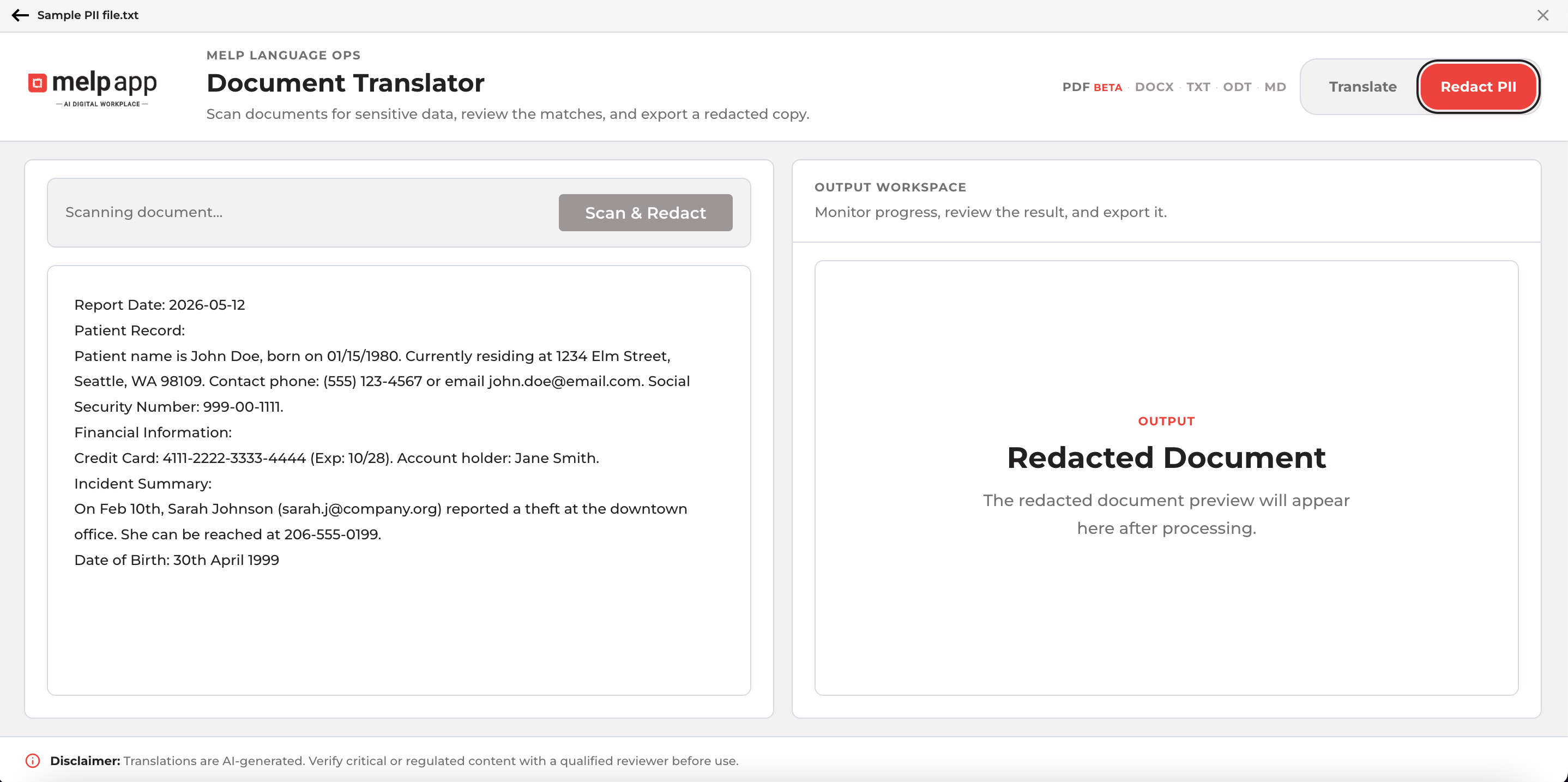
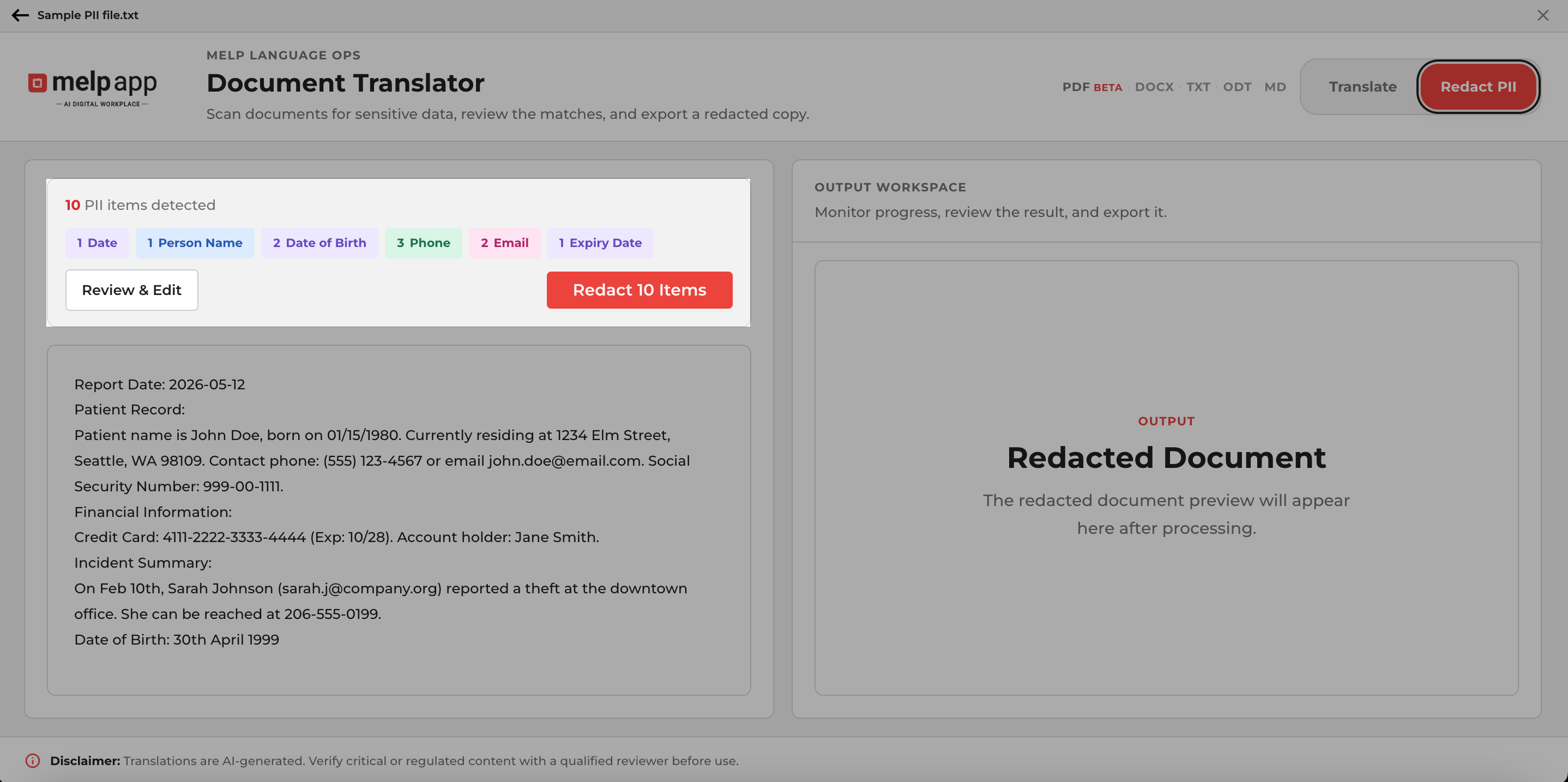
- Press the Scan & Redact button. Melp scans the document and automatically identifies and masks all detected PII.
-
All the redacted items appear when clicking the Review and Edit CTA. Review carefully and click Redact to ensure all sensitive information is appropriately masked.
-
The Output Workspace displays the redacted document preview with all detected PII masked.
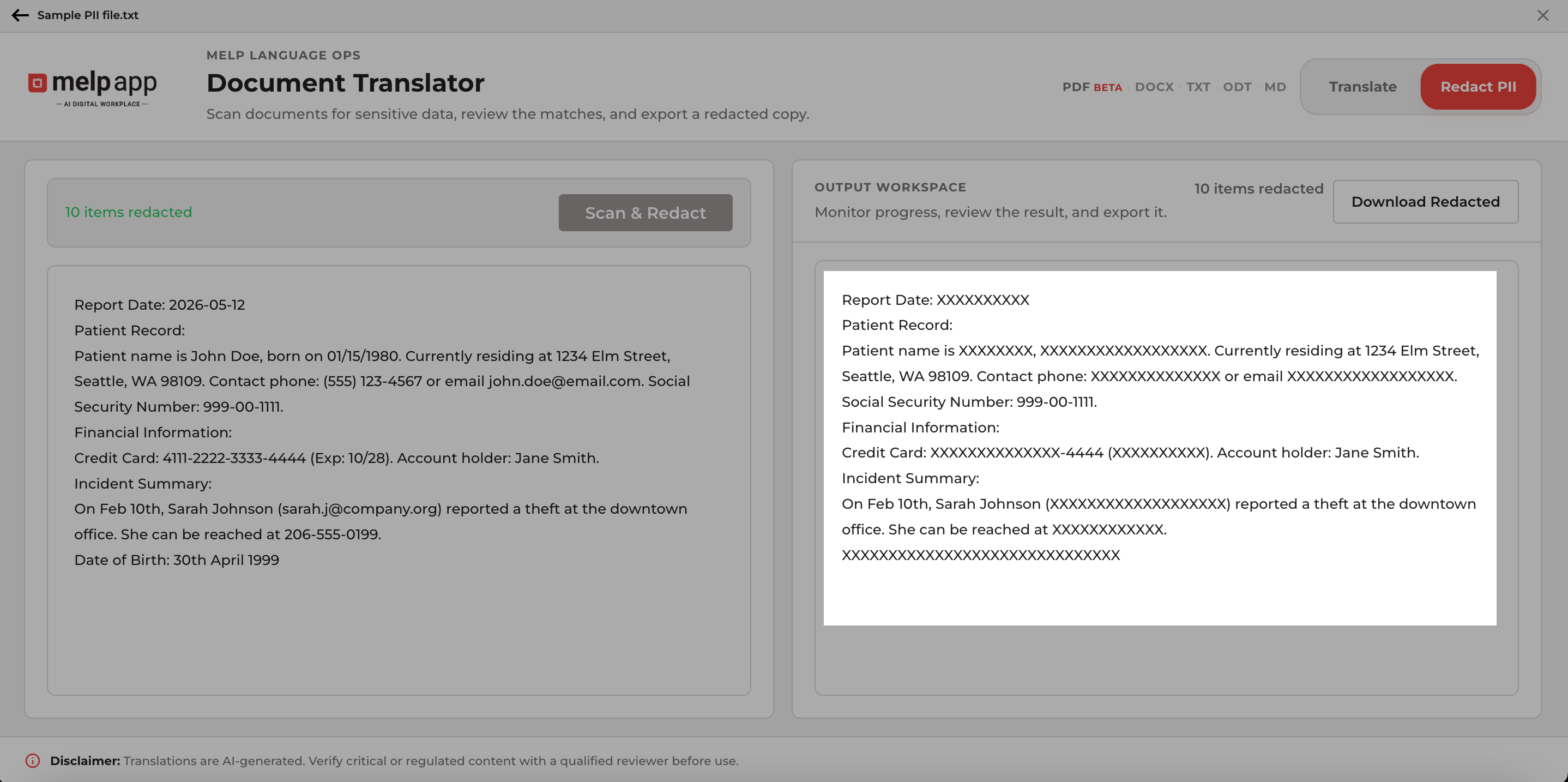
- Click Download Redacted to save the redacted document locally.
What PII Does Melp Detect and Redact?
Melp automatically detects and masks different types of personally identifiable information (PII) from your documents.
| PII Category | What Gets Masked |
|---|---|
| Full Names | First names, last names, and full names of individuals |
| Email Addresses | Any email address format (name@domain.com) |
| Phone Numbers | Local and international phone number formats |
| Physical Addresses | Street addresses, postal codes, city/state/country combinations |
| National ID Numbers | Passport numbers, national ID, social security, Aadhaar, PAN, and equivalent identifiers |
| Financial Identifiers | Bank account numbers, IBAN, credit card numbers (where detectable in text) |
| Other PII | Any other personally identifiable details detected by the AI model |
Always review the redacted document after processing to confirm all sensitive information has been masked before sharing externally. AI redaction may not catch every instance of PII in all document formats.