Melp AI Assistant
The Melp AI Assistant is a built-in AI-powered panel that lets you search, summarize, and extract key insights from any conversation — without leaving your chat.
It understands natural language questions and responds with intelligent, contextually accurate answers drawn directly from your chat history.
Whether you need a quick summary of a long thread, a list of action items, or answers to specific questions about a past discussion, the Melp AI Assistant has you covered — in seconds.
Features
| Feature | Description |
|---|---|
| Natural Language Search | Ask questions in plain English. No commands or keywords needed. |
| Chat Summarization | Get an instant structured summary of any conversation. |
| Action Item Extraction | Identify tasks, decisions, and unresolved questions automatically. |
| Export Results | Download AI responses as XLSX, CSV, and PDF. |
| Works in All Chat Types | Supports 1-on-1 messages, Group chats, Topic chats, and In-call chats. |
| Secured AI | AI reads only your current chat, keeping your data secure and private. We never use customer data to train our models. |
Where to Find the AI Assistant
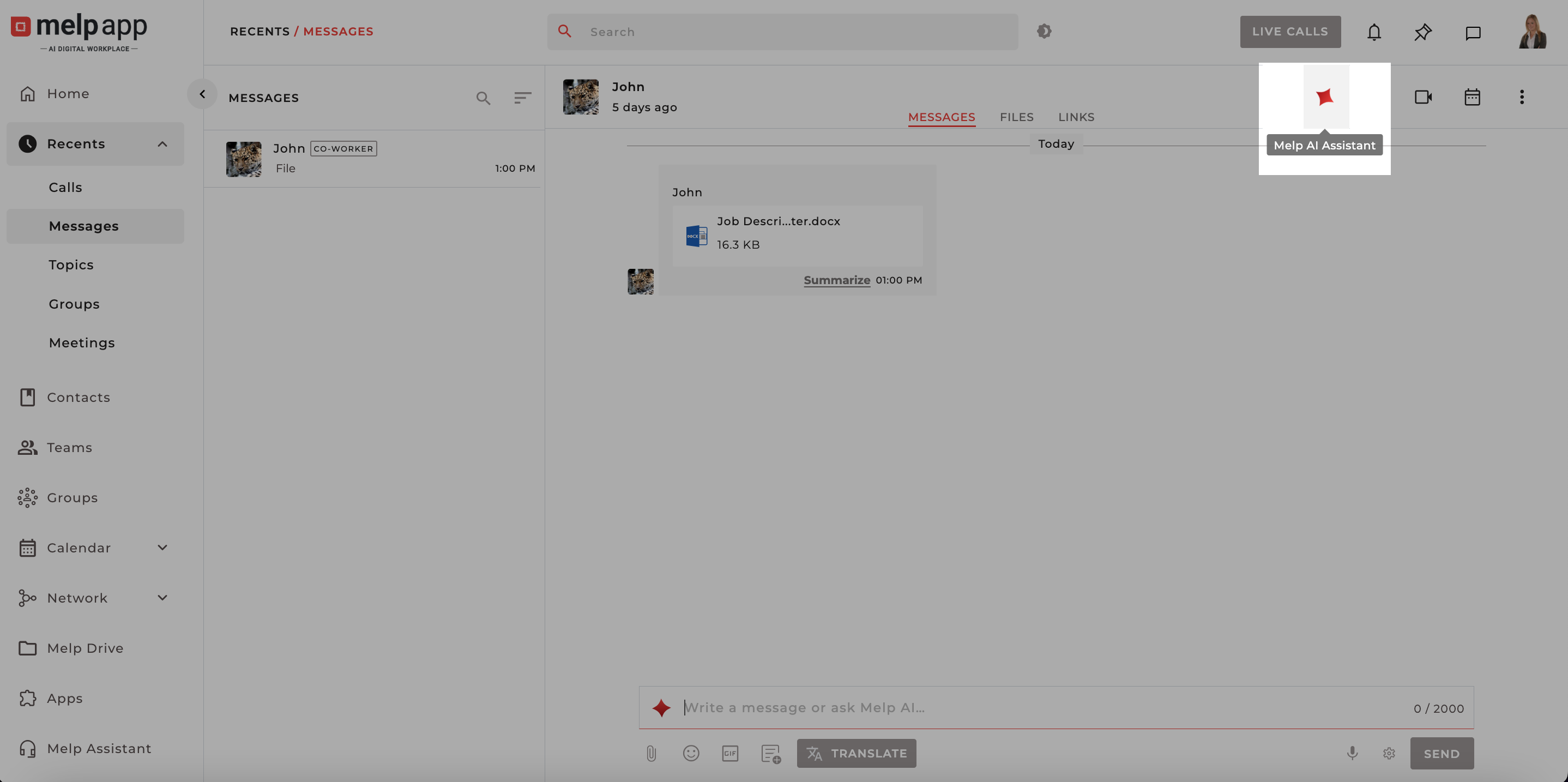
The Melp AI Assistant is available in every chat context across the platform.
Look for the red spark icon (✦) in the chat toolbar at the top-right of any open conversation.
Supported Chat Types
| Chat Type | Description |
|---|---|
| 1-on-1 Messages | Direct messages between two people |
| Group Chats | Conversations in any group workspace |
| Topic Channels | Focused discussion threads organized by topic |
| In-Call Chats | Chat sidebar available during a live call |
Steps to Open Melp AI Assistant
Follow these steps to open the Melp AI Assistant and ask your first question.
-
Navigate to any of the following from the left sidebar: 1-on-1 message, Group chat, Topic chat, In-call chat
-
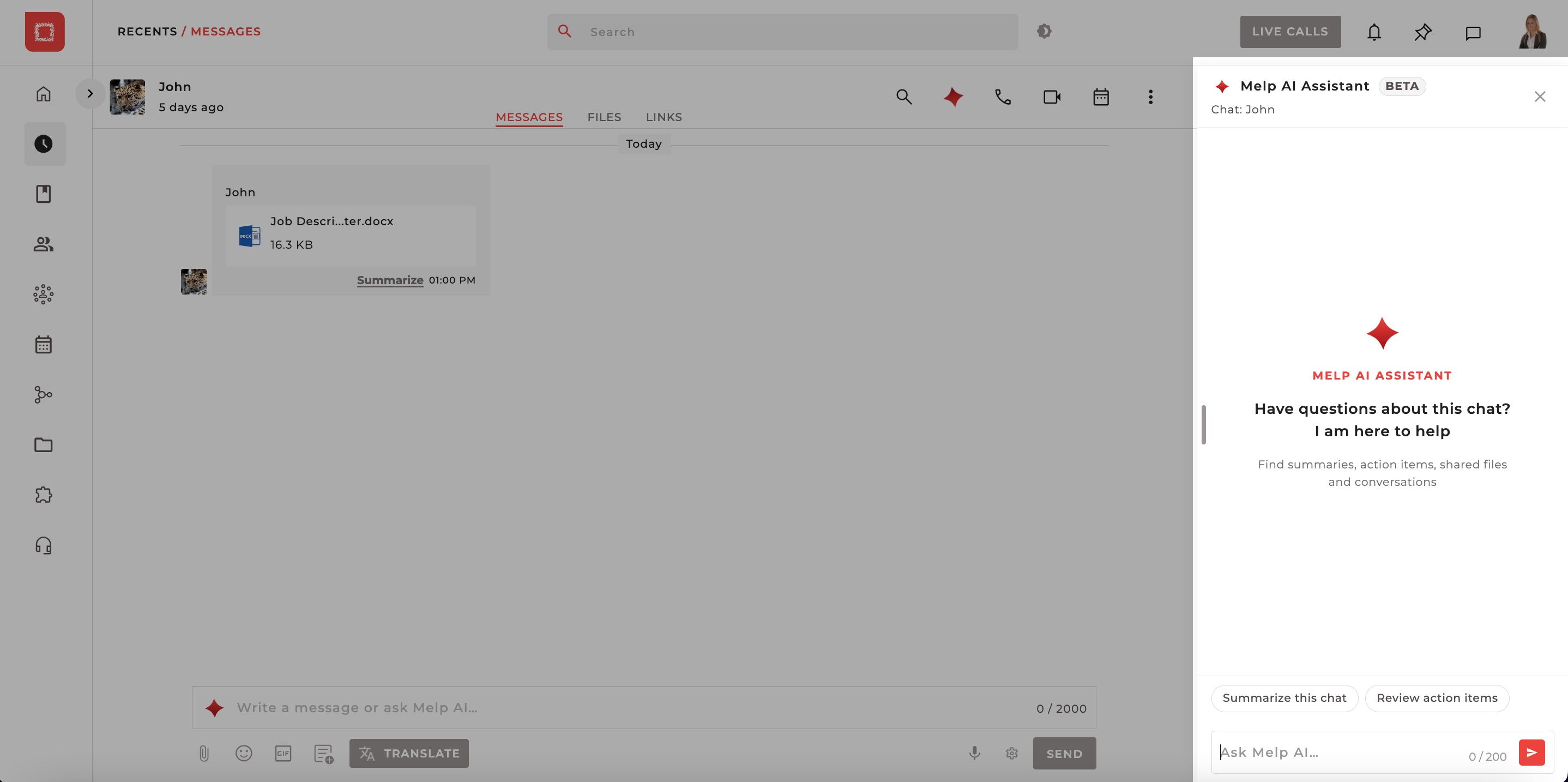
Locate the red spark icon (✦) in the top-right toolbar of the chat and click the icon to open the Melp AI Assistant panel on the right side of your screen.
-
The Melp AI Assistant panel slides in from the right. The panel header displays: Melp AI Assistant BETA and the chat name being searched
-
Choose one of the quick actions for instant results: Summarize this chat or Review action items or you can also type your own question in the input field at the bottom of the panel.
-
The AI searches the current conversation and streams its response directly in the panel.
Tip: The panel is scoped to your current chat
The AI only reads messages from the conversation you currently have open.
It cannot access data from other chats, keeping your information safe and private.
Using the Quick Summarize Button
When the panel first opens, two quick-action buttons appear at the bottom:
-
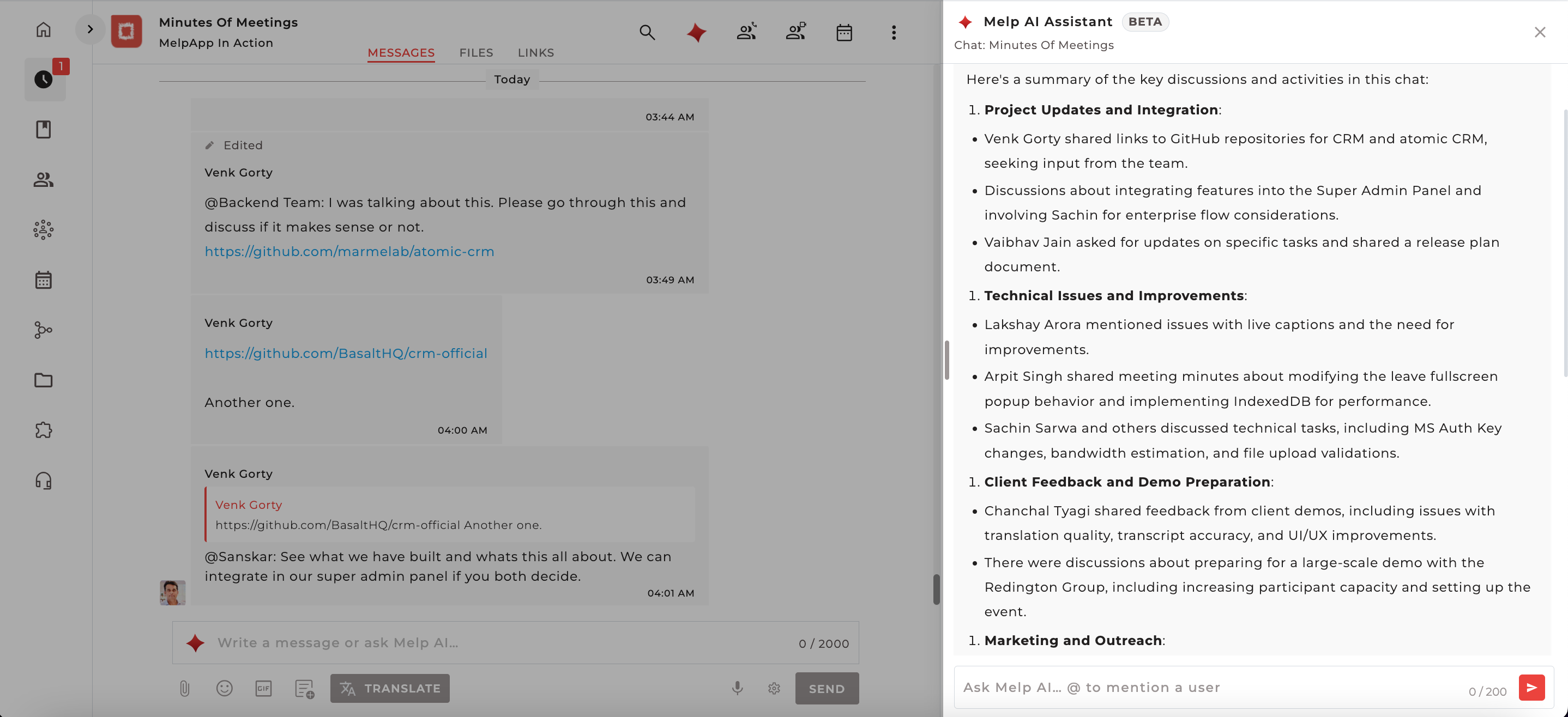
Summarize this chat — Generates a comprehensive summary of the entire conversation history.
-
Review action items — Extracts tasks, decisions, and open questions from the thread.
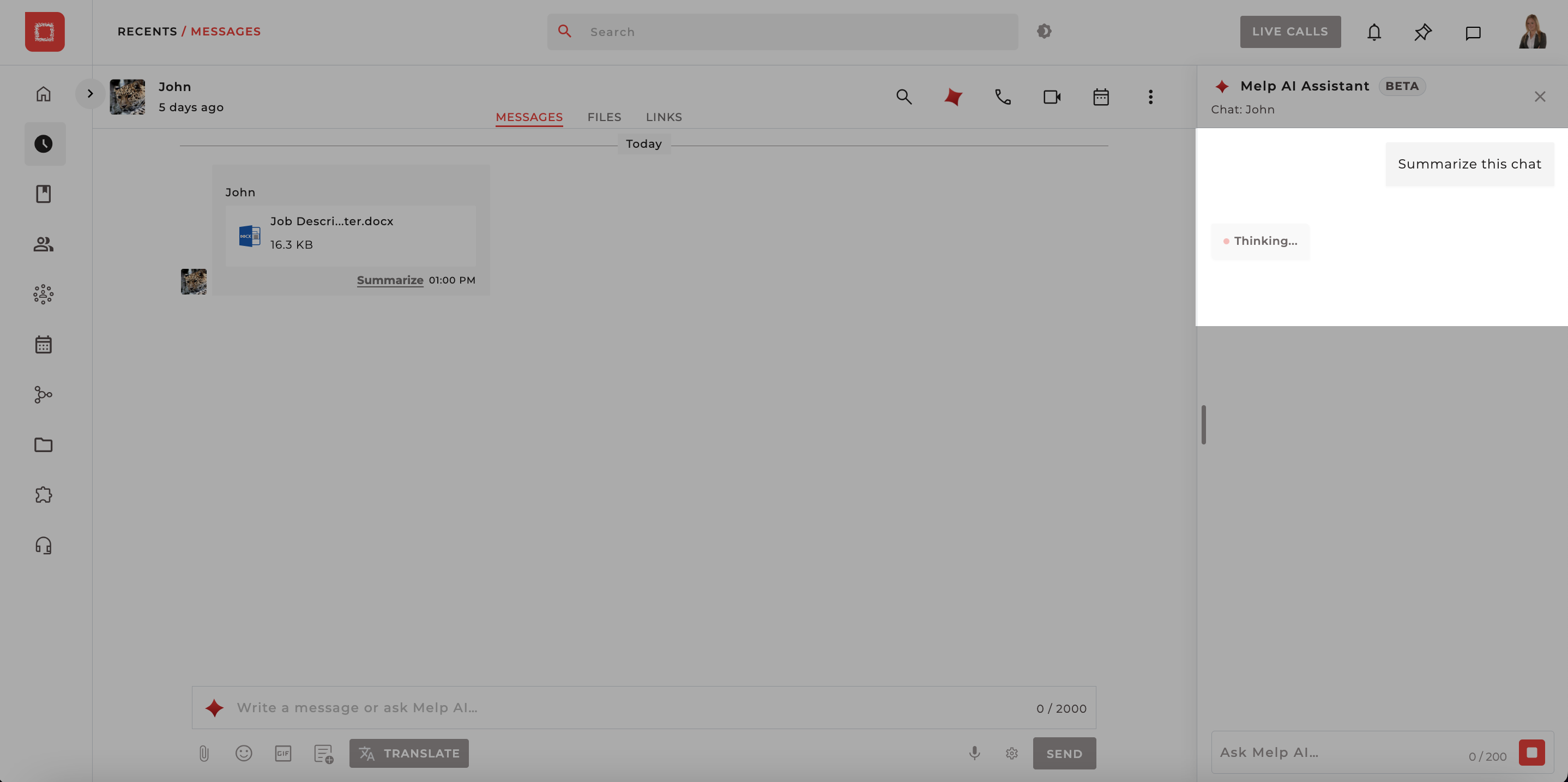
Click Summarize this chat. The panel shows a Thinking... indicator while the AI processes the conversation, then streams the response progressively.
Asking Questions in Natural Language
The Melp AI Assistant understands plain English questions. You do not need to use special commands or keywords. Just type your question in the input field at the bottom of the panel and press Send (or hit Enter).
Example Queries You Can Ask
| Query | Description |
|---|---|
| What did we decide about the deadline? | Returns messages discussing deadline decisions, with sender and date. |
| Summarize the last 7 days of this chat | Generates a summary filtered to messages from the past week. |
| What are the open action items? | Lists all tasks mentioned in the conversation that appear unresolved. |
| What did Alice say about testing? | Returns messages from Neeraj specifically related to testing topics. |
| List all shared files in this chat | Summarizes file-sharing activity in the conversation. |
| What questions were never answered? | Identifies questions raised in the thread with no follow-up reply. |
| What was discussed on May 10th? | Date-scoped search returning messages from that specific date. |
| export csv | Triggers the CSV export of the last AI response (see Exporting Results). |
How to Type and Send a Query
-
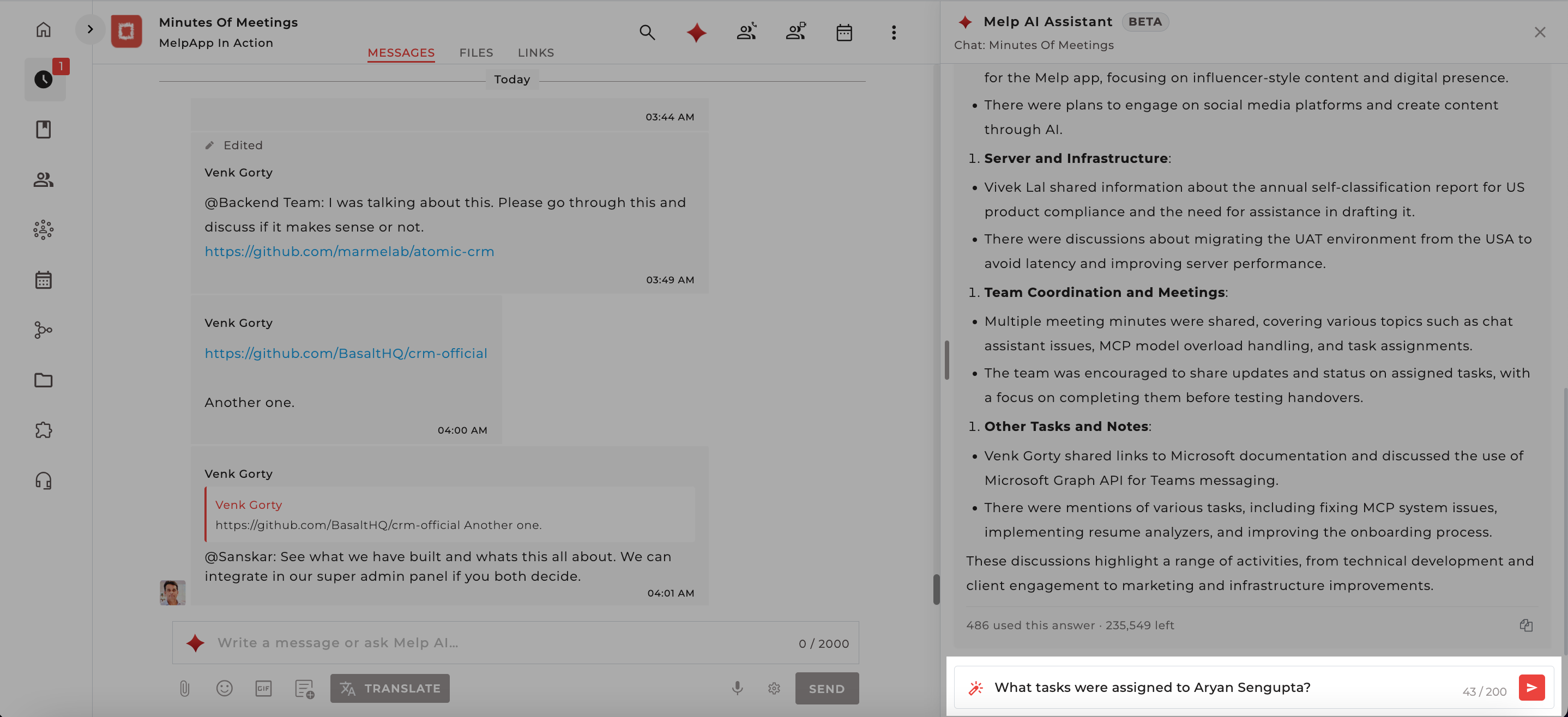
Click inside the 'Ask Melp AI...' input field at the bottom of the panel. The counter shows your character usage (e.g., 8 / 200).
-
Type your question in plain language.
-
Press the red Send button or hit Enter. The AI begins searching immediately.
Exporting and Downloading Results
Once the AI has generated a response, you can export it to share with your team, include it in a report, or archive it for future reference.
How to Export
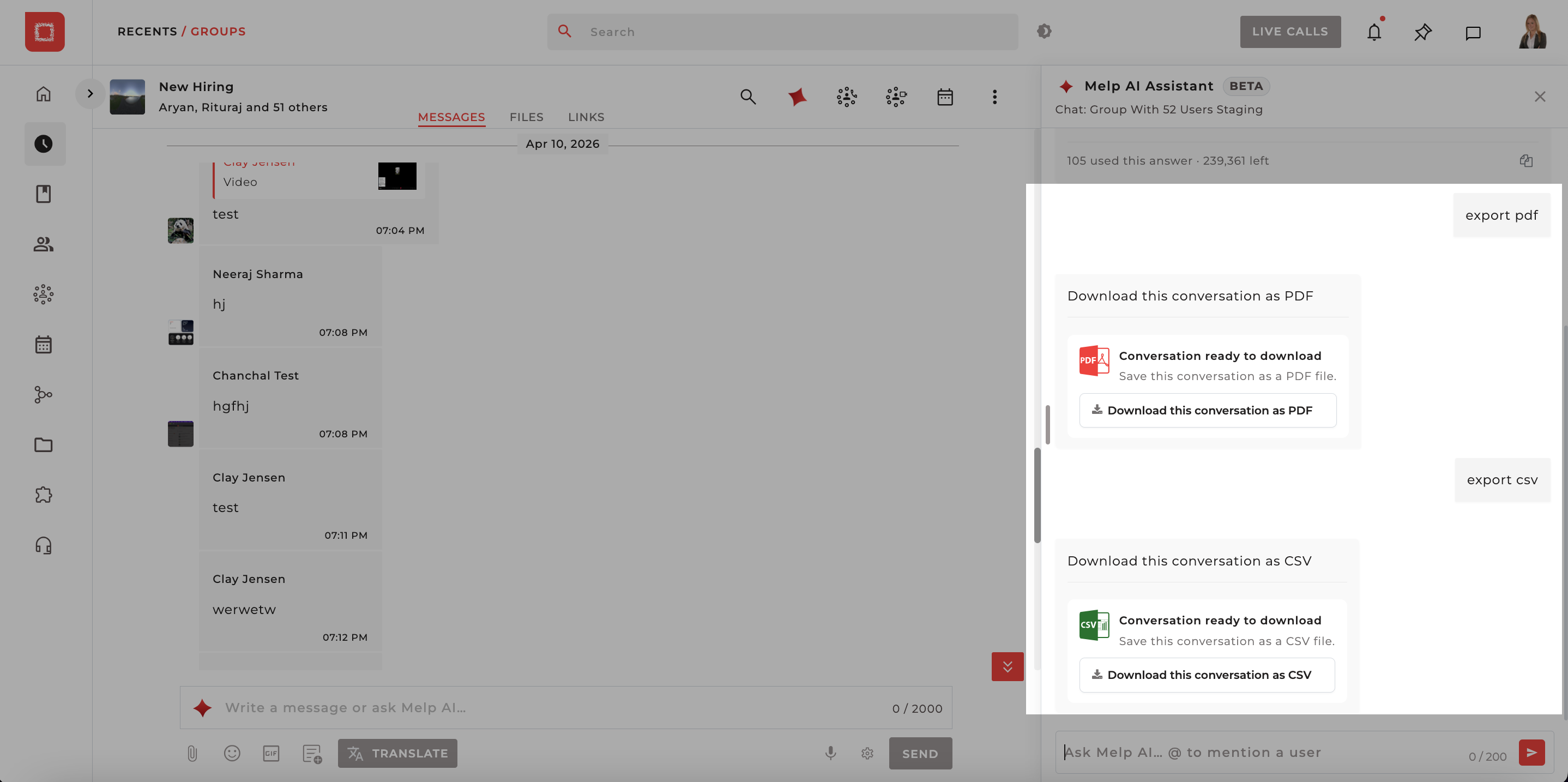
- After a response is displayed, type your desired export format into the query field.
Examples:
export csvexport pdf-
export xlsx -
Press Send. The panel shows a 'Searching messages...' indicator briefly, then presents a downloadable file.
-
A download card appears with the format icon and the label.
-
Click to download the file and the file saves to your device immediately.
Reviewing Action Items
The AI Assistant can identify tasks and open items from your conversation automatically. Click the 'Review action items' quick button when the panel first opens, or type 'List all action items' in the query field.
The response lists each action item with:
- The assigned person (where mentioned)
- The task or decision
- The due date or deadline (where mentioned in the chat)
Combine with Export
After reviewing action items, type 'export csv' to download the full list as a spreadsheet — perfect for feeding into a project management tool or sharing with your team lead.