Personalize Your Preferences
Your preferences let you tailor melp app to your work style—whether it’s managing time zones, muting distractions, or controlling how others connect with you.
Set Your Location
Easily share where you’re based so meetings and collaborations reflect your region.
Steps to Set Your Location:
- Go to Account Settings.
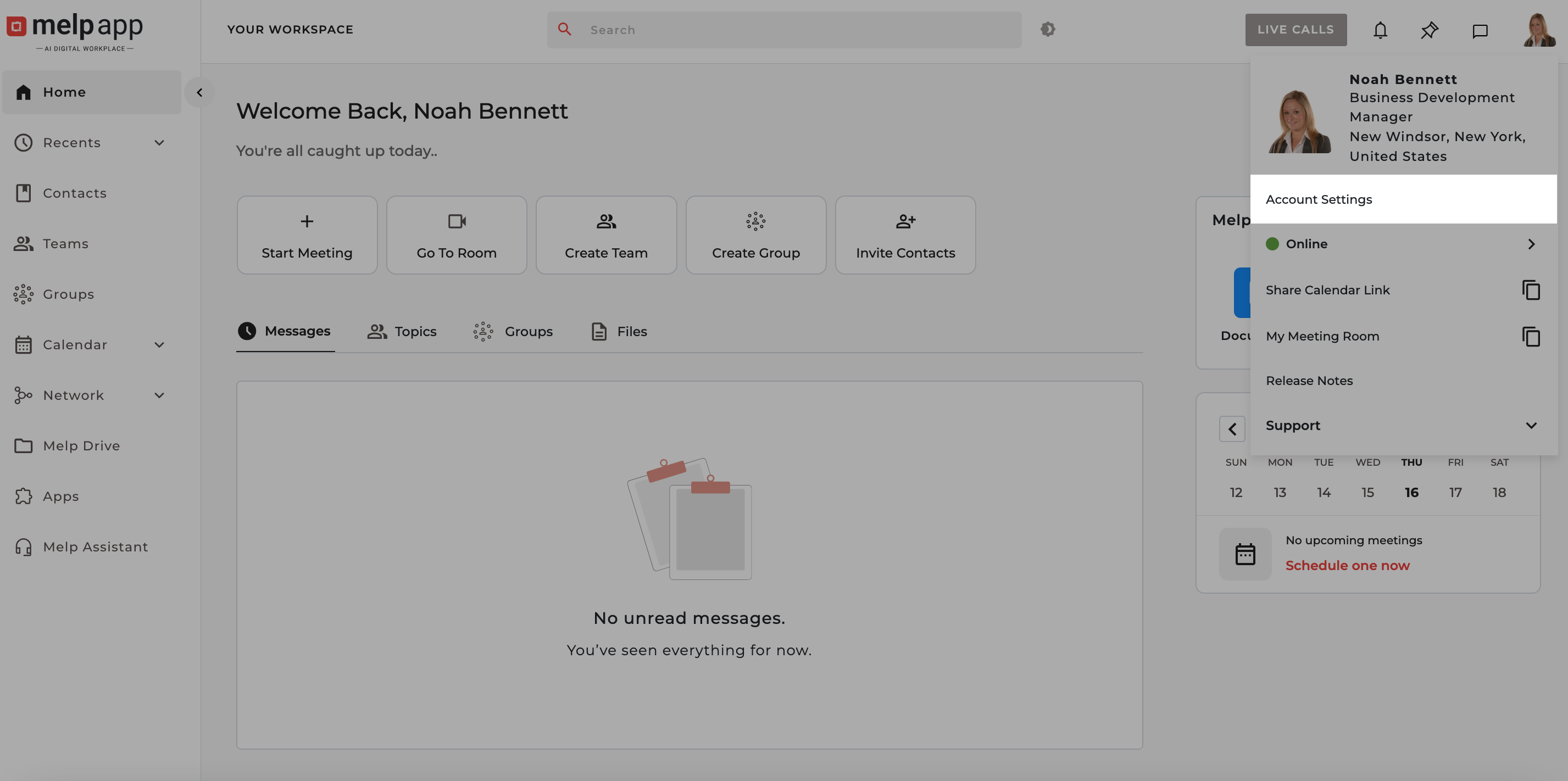
- Click on the Preferences tab.
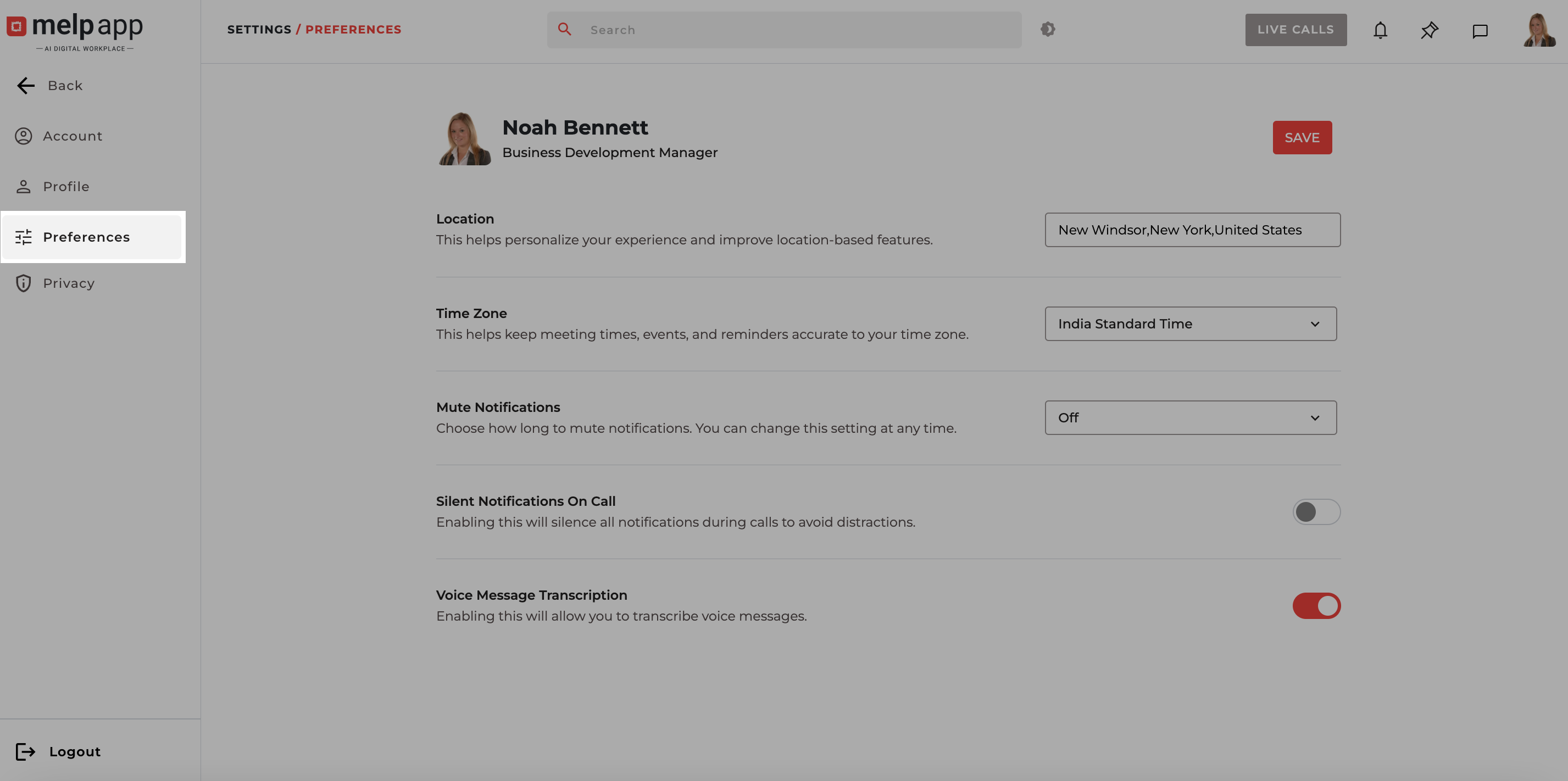
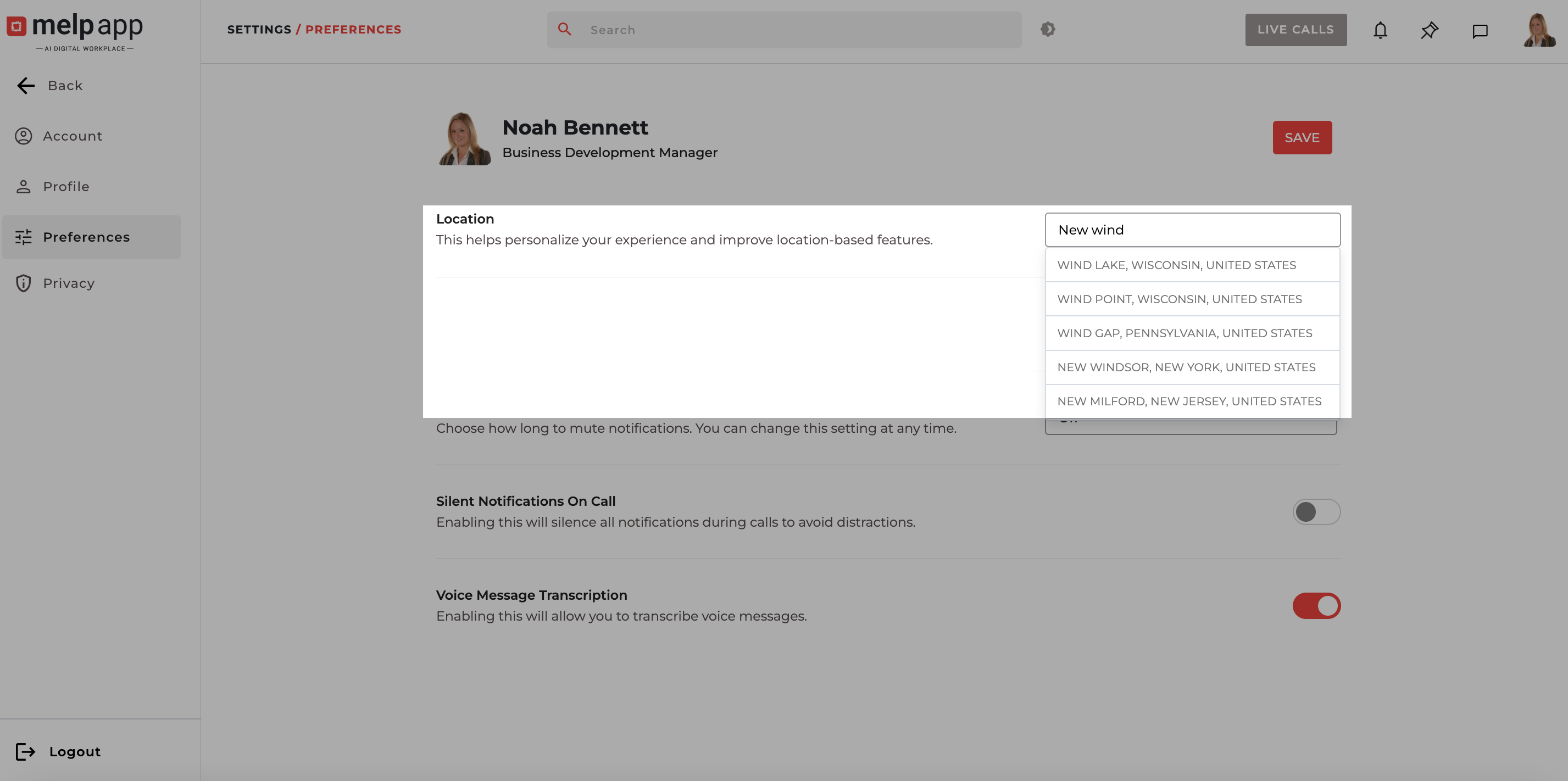
- In Location, search your city or region and select from the list.
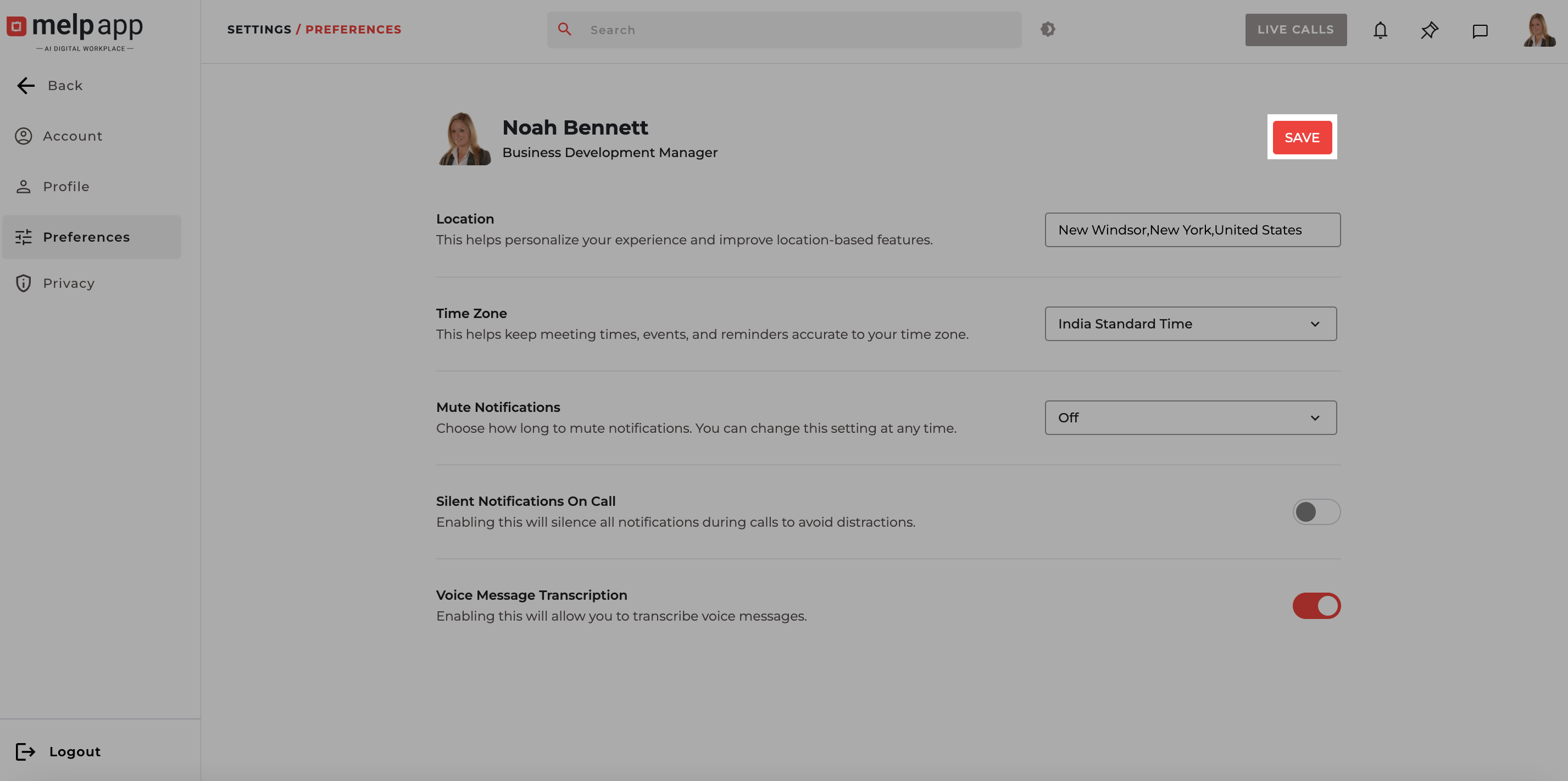
- Click Save to update.
Set Your Time Zone
Keep your calendar and reminders accurate across meetings and events.
Steps to Set Your Time Zone:
- Go to Account Settings.
- Click on the Preferences tab.
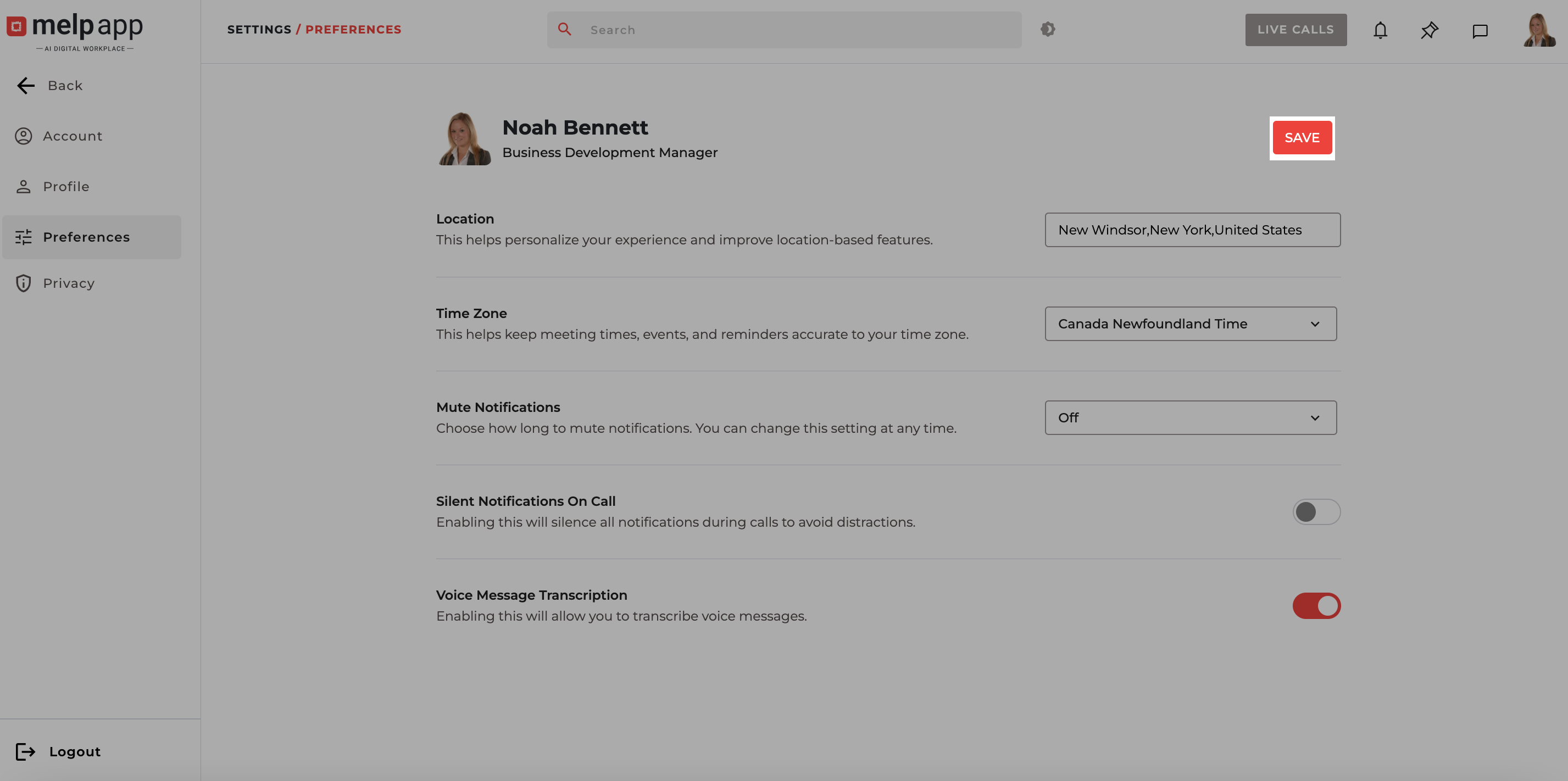
- In Time Zone, select the correct time zone from the dropdown.
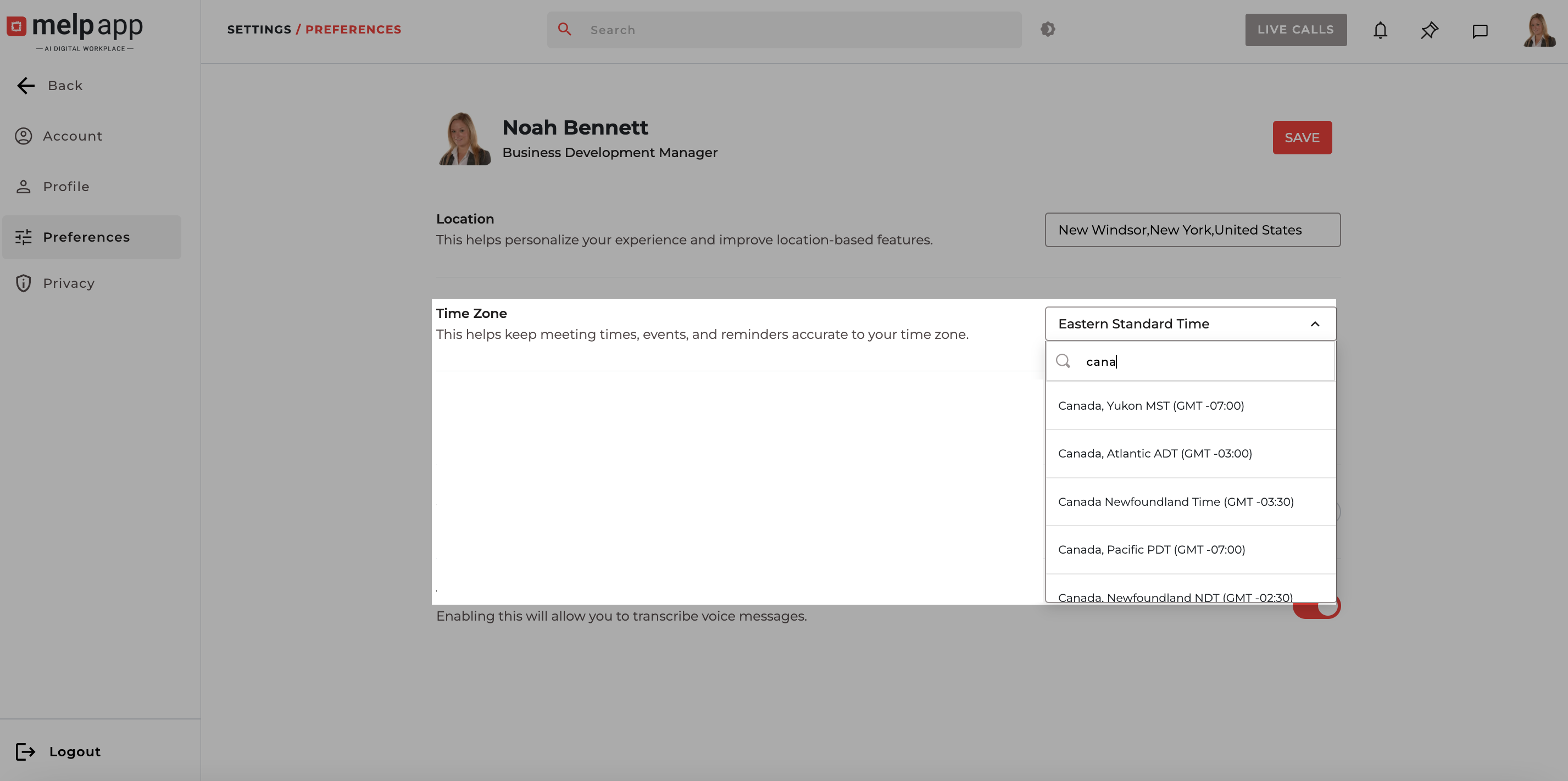
- Click Save to confirm.
Mute Notifications
Take control of your focus by pausing alerts when you need uninterrupted time.
Steps to Mute Notifications:
- Go to Account Settings.
- Click on the Preferences tab.
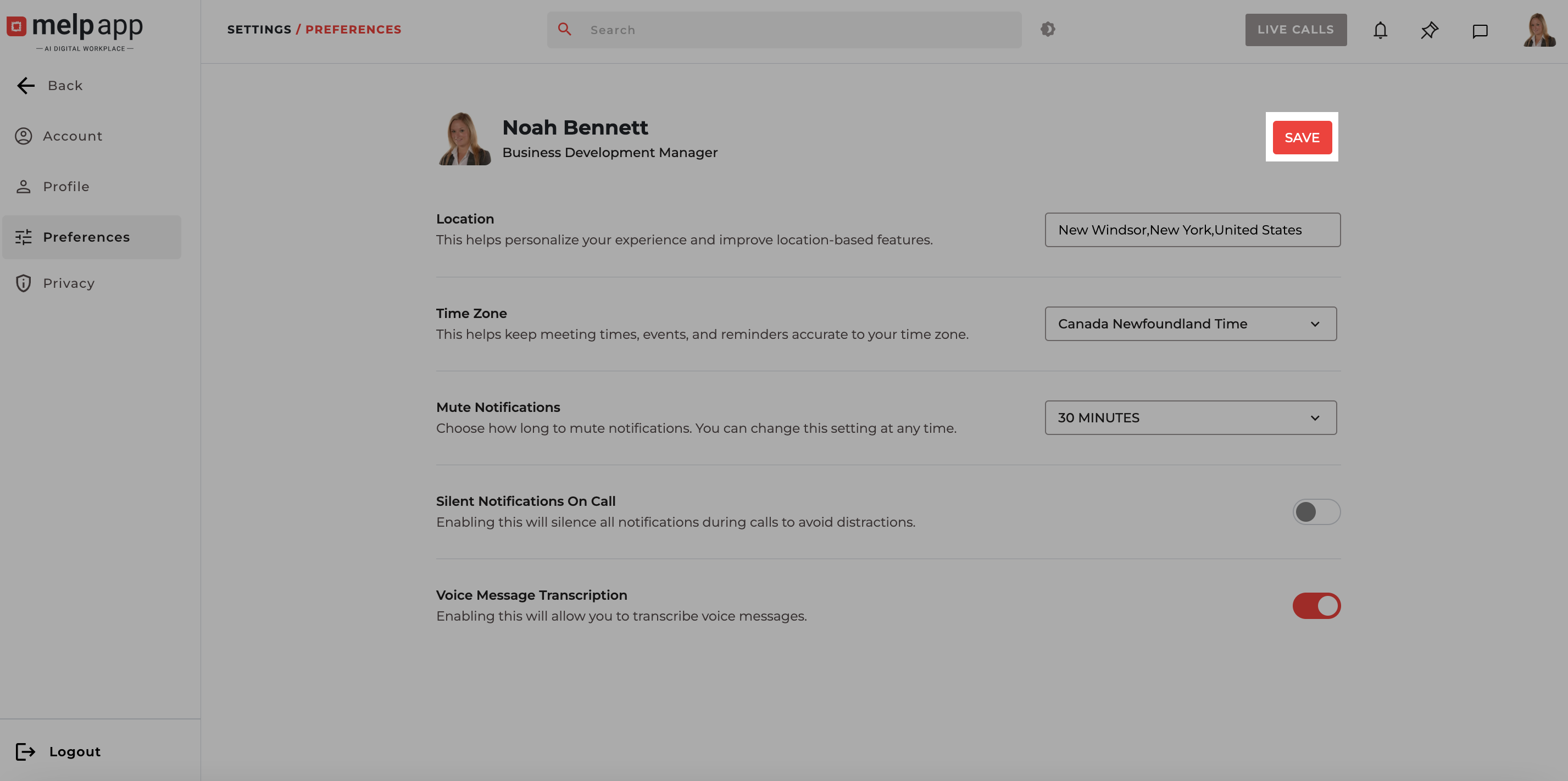
- In Mute Notifications, choose how long to mute (e.g., Off, or set a duration).
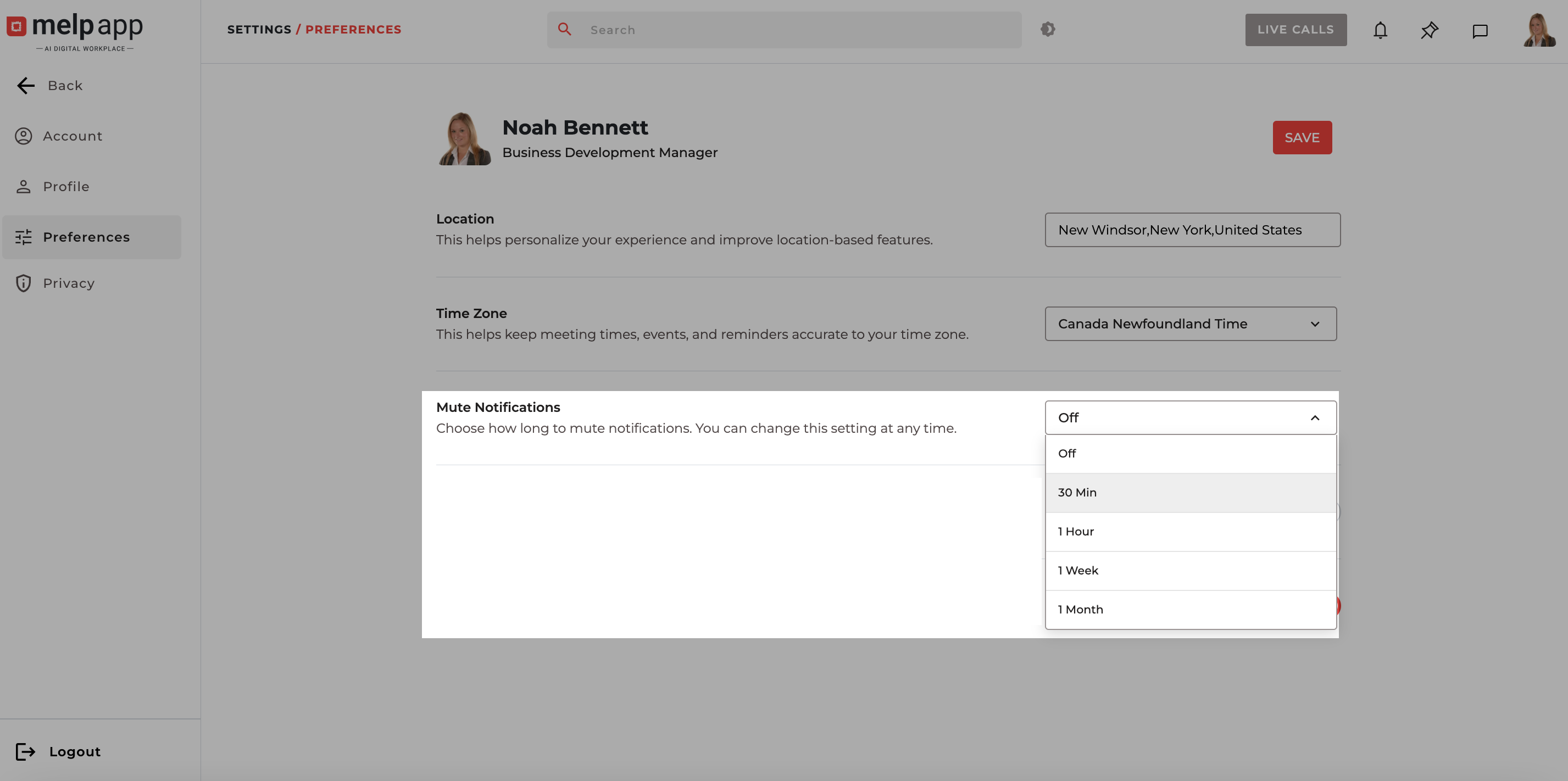
- Click Save to apply changes.
Silent Notifications on Call
Stay distraction-free while you’re on a call.
Steps to Enable Silent Notifications on Call:
- Go to Account Settings.
- Click on the Preferences tab.
- Toggle Silent Notifications On Call On to silence all notifications during calls.
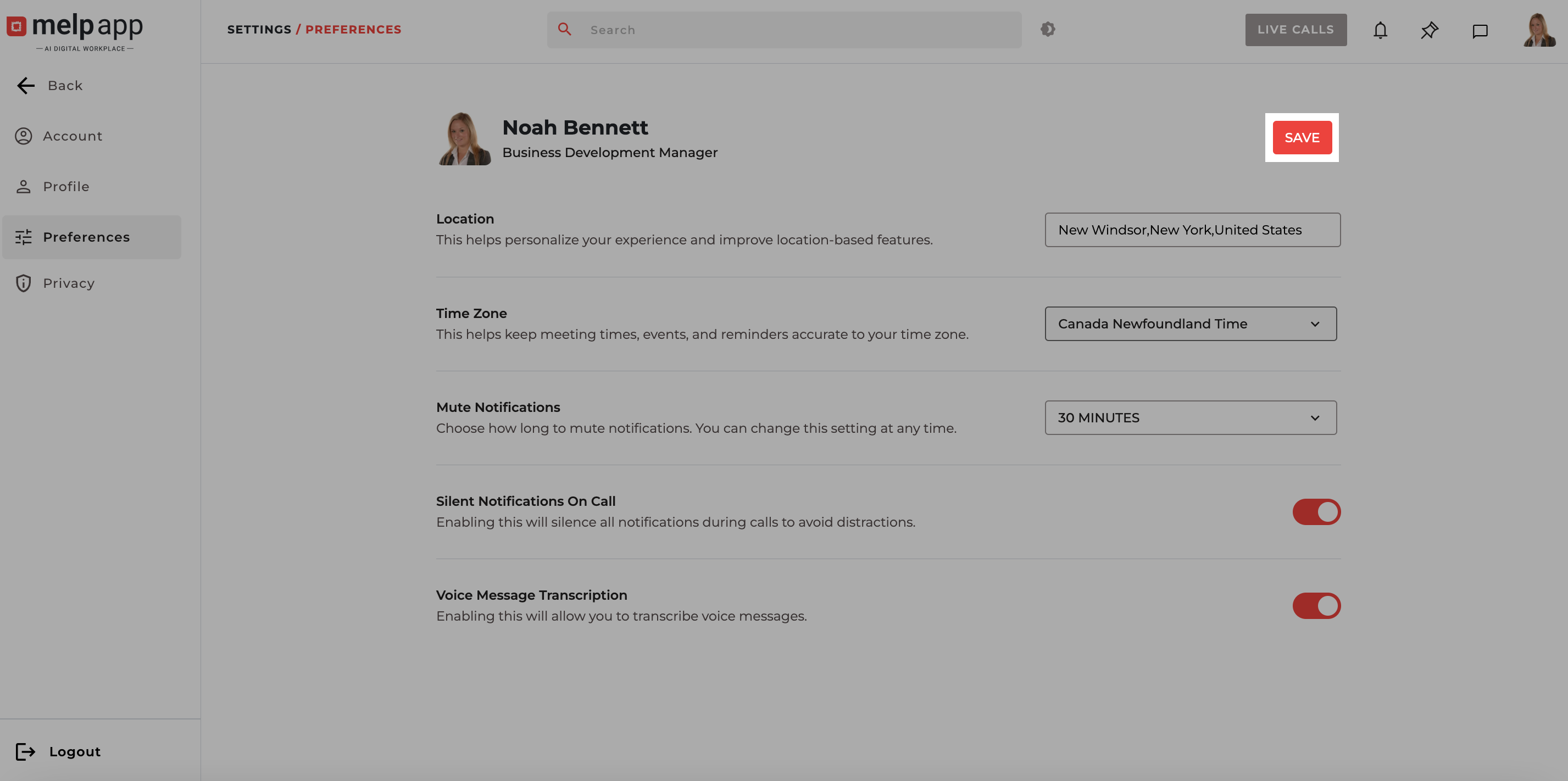
- Click Save to update your setting.
Voice Message transcription
Enable Voice Transcription in settings to instantly convert voice messages into readable text, making communication faster, clearer, and more convenient.
Steps to Enable Voice Transcription
- Go to Account Settings in your profile menu.
- Click on the Preferences tab.
- Find the Voice Transcribe option and turn the toggle ON.
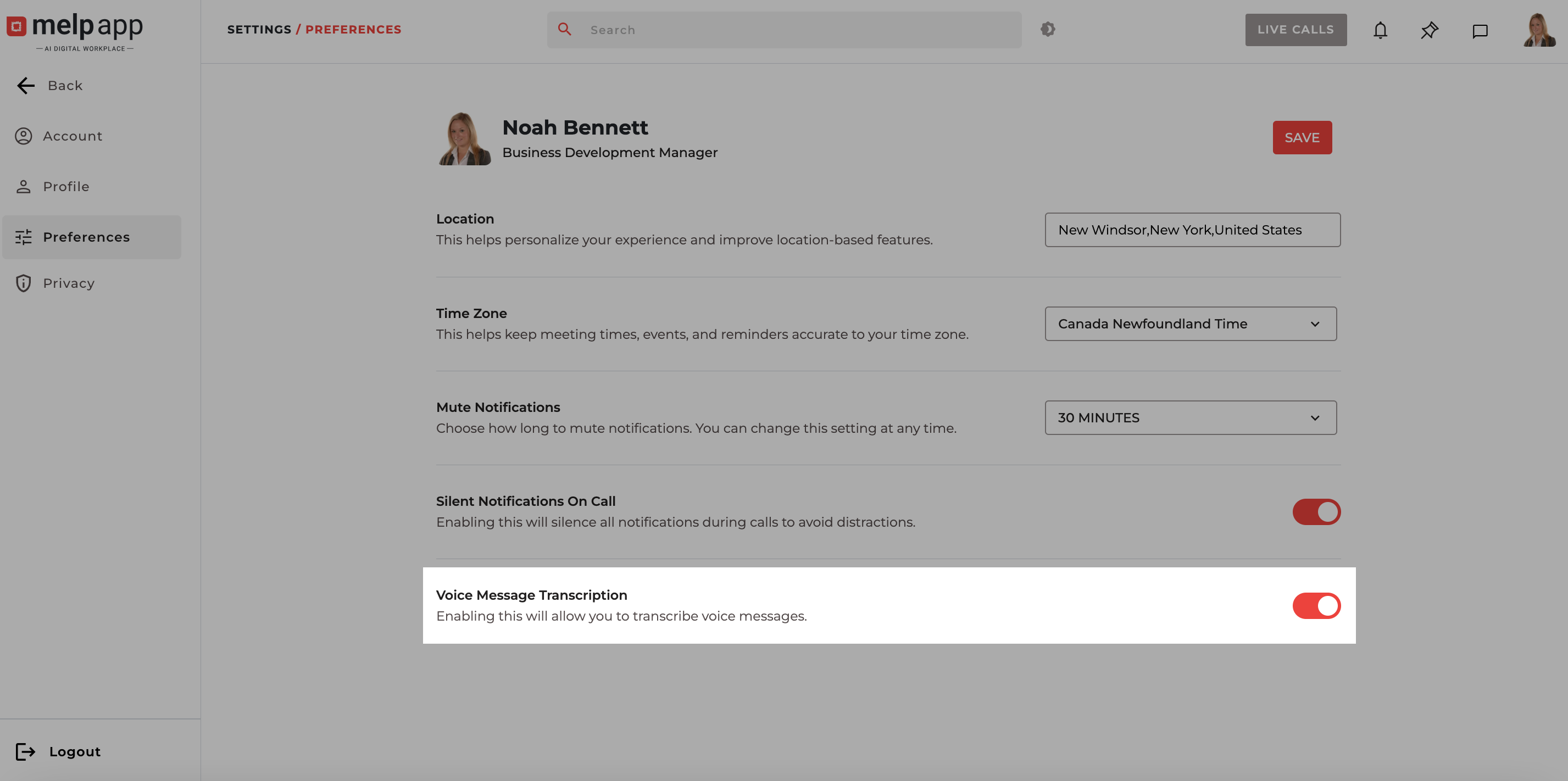
- Click Save to update your setting.
With these preferences set, you’ll enjoy a more personalized, distraction-free, and seamless melp app experience.