Privacy
Manage your account security and control your privacy preferences in melp app. This section helps you protect your account, update credentials, and manage how others interact with you.
Allow Public Invitations
Decide whether others can send you invites.
Steps to Manage Public Invitations:
- Go to Account Settings.
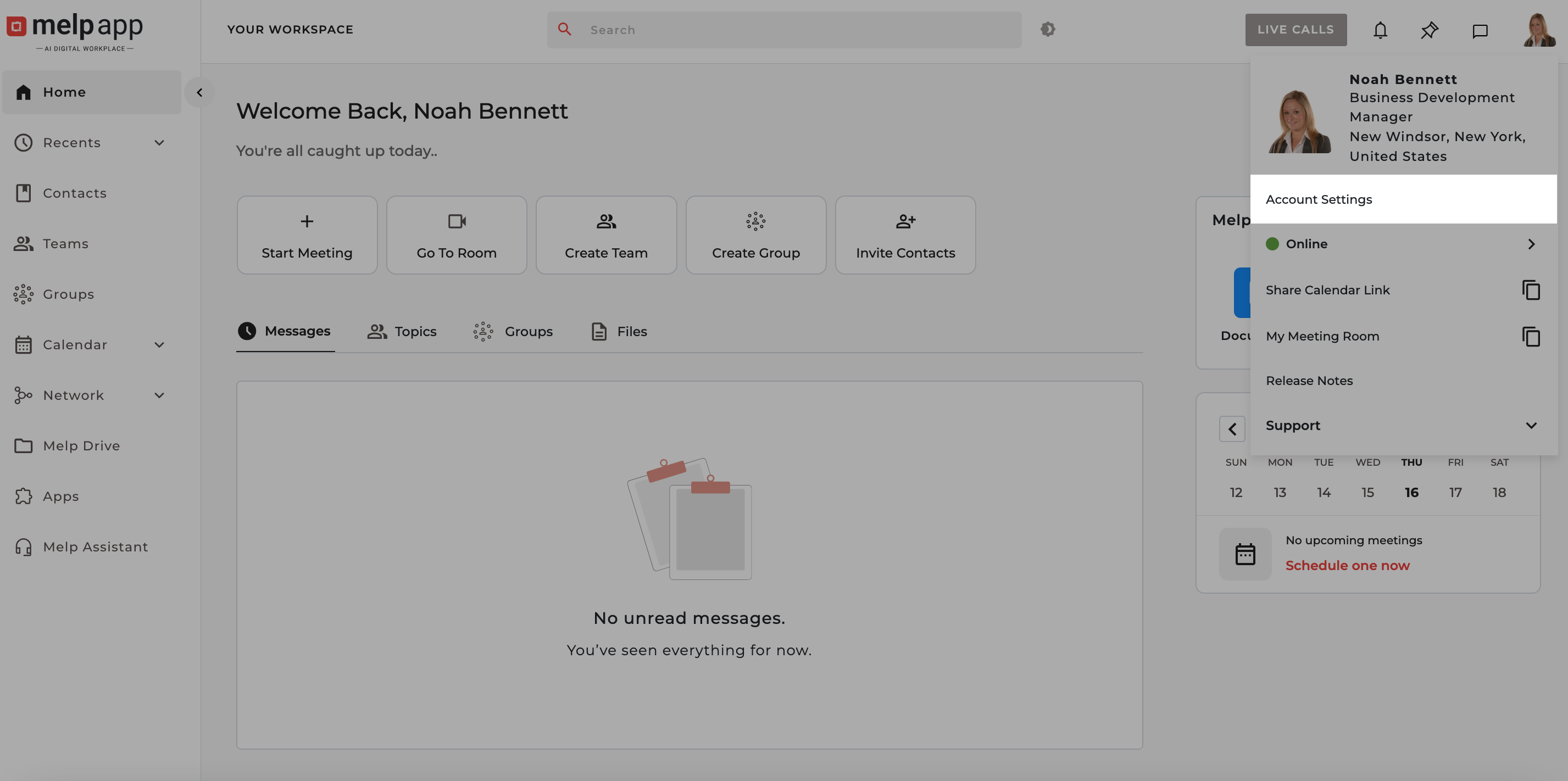
- Click on the Privacy tab.
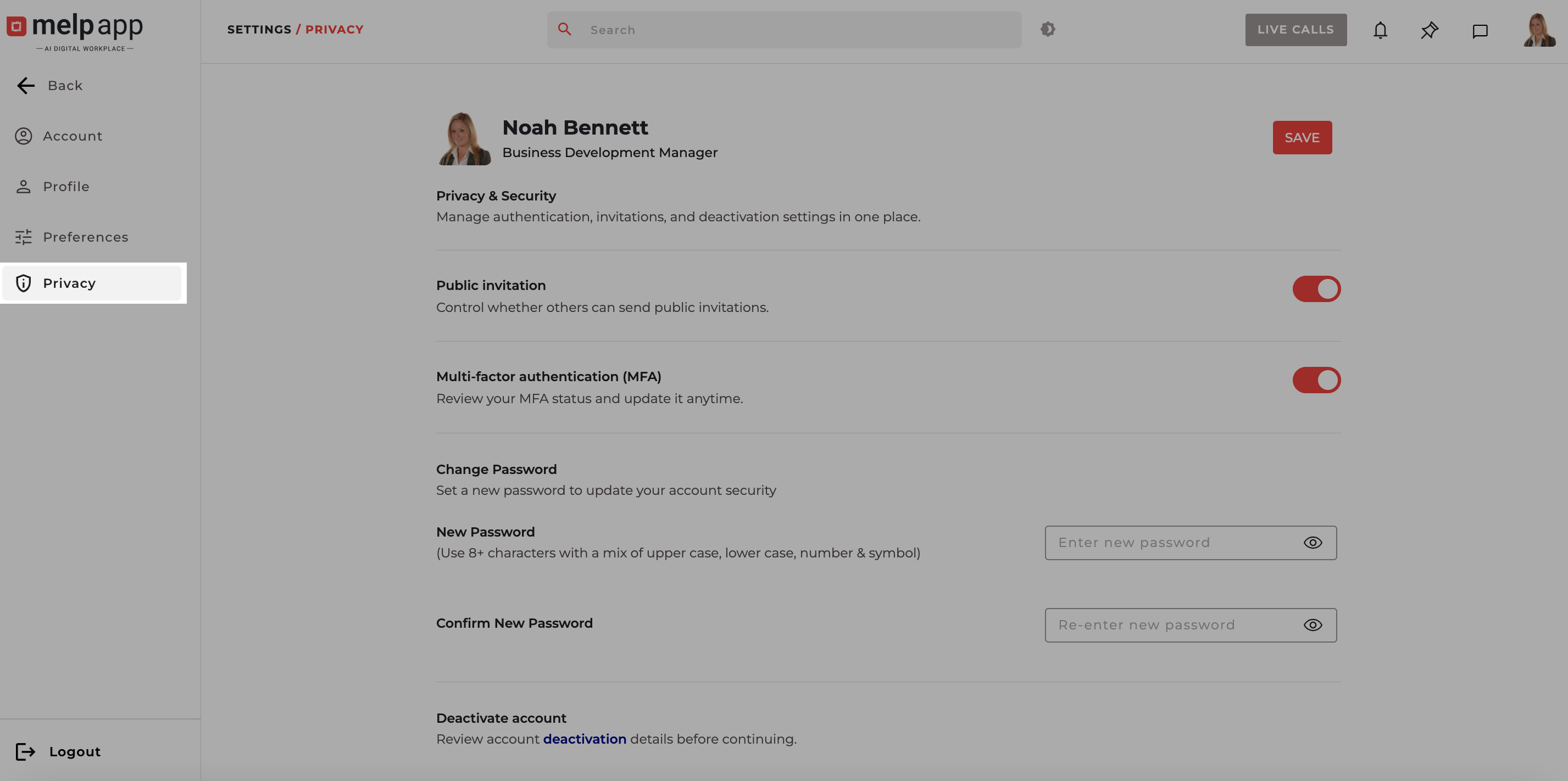
- Toggle Allow Public Invitations On if you’d like to receive them (you can switch it off anytime).
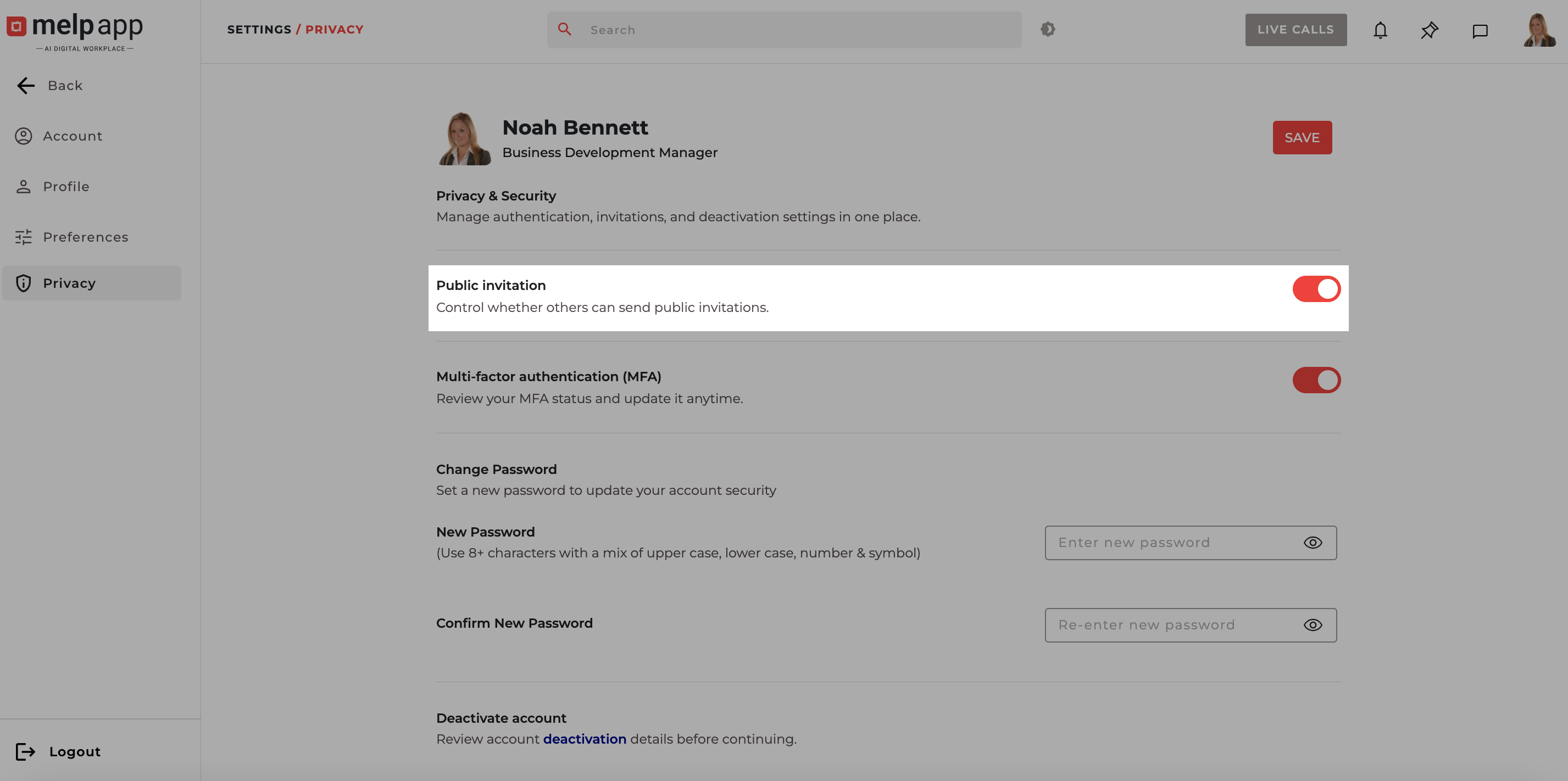
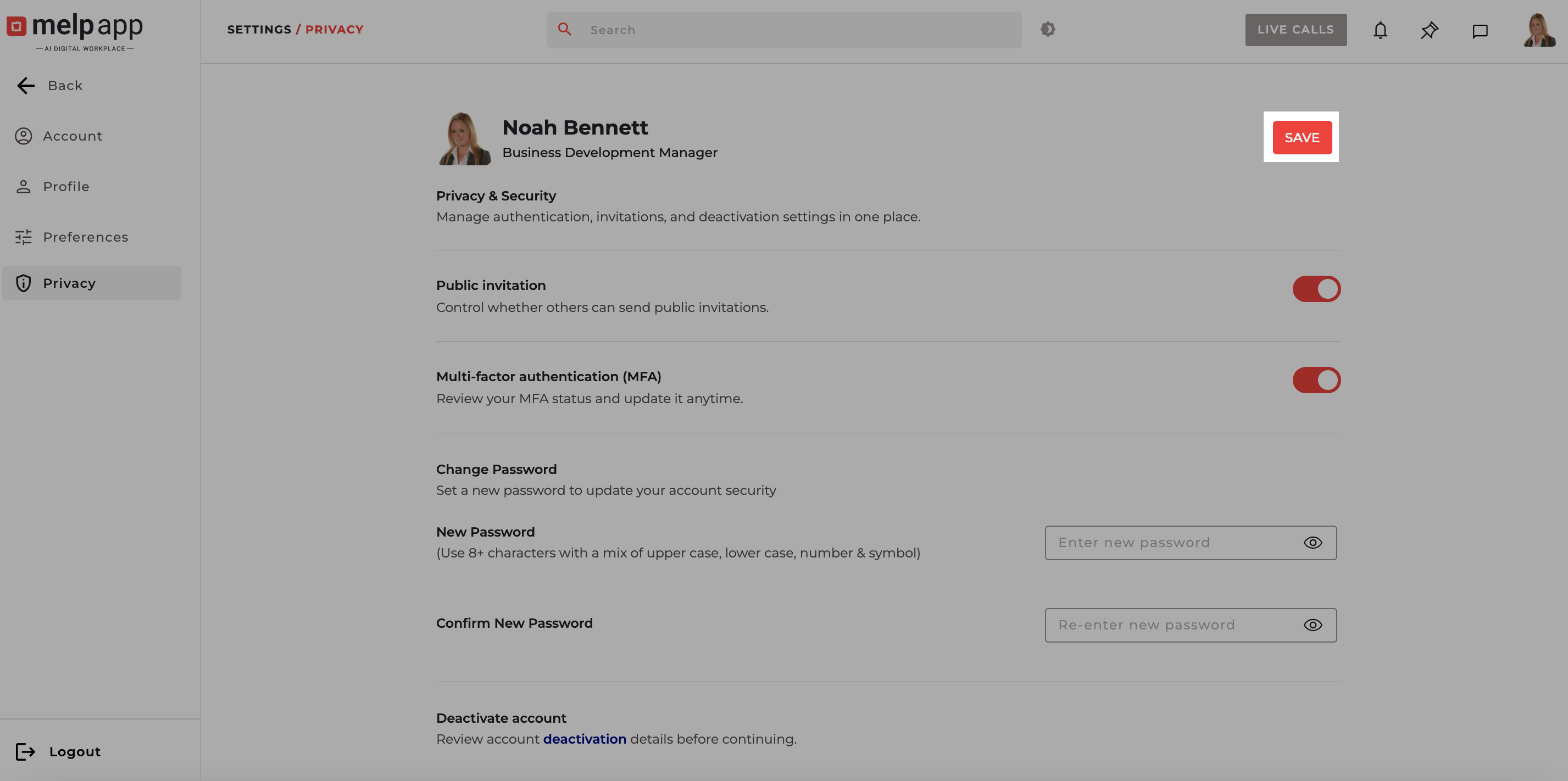
- Click Save to confirm.
Multi-Factor Authentication (MFA)
Add an extra layer of security to your account with Multi-Factor Authentication.
When enabled, you’ll need to verify your identity using an additional step while logging in, keeping your account more secure from unauthorized access.
- Go to Account Settings.
- Click on the Privacy tab.
- Toggle Multi factor authentication On Add an extra layer of security to your account(you can switch it off anytime).
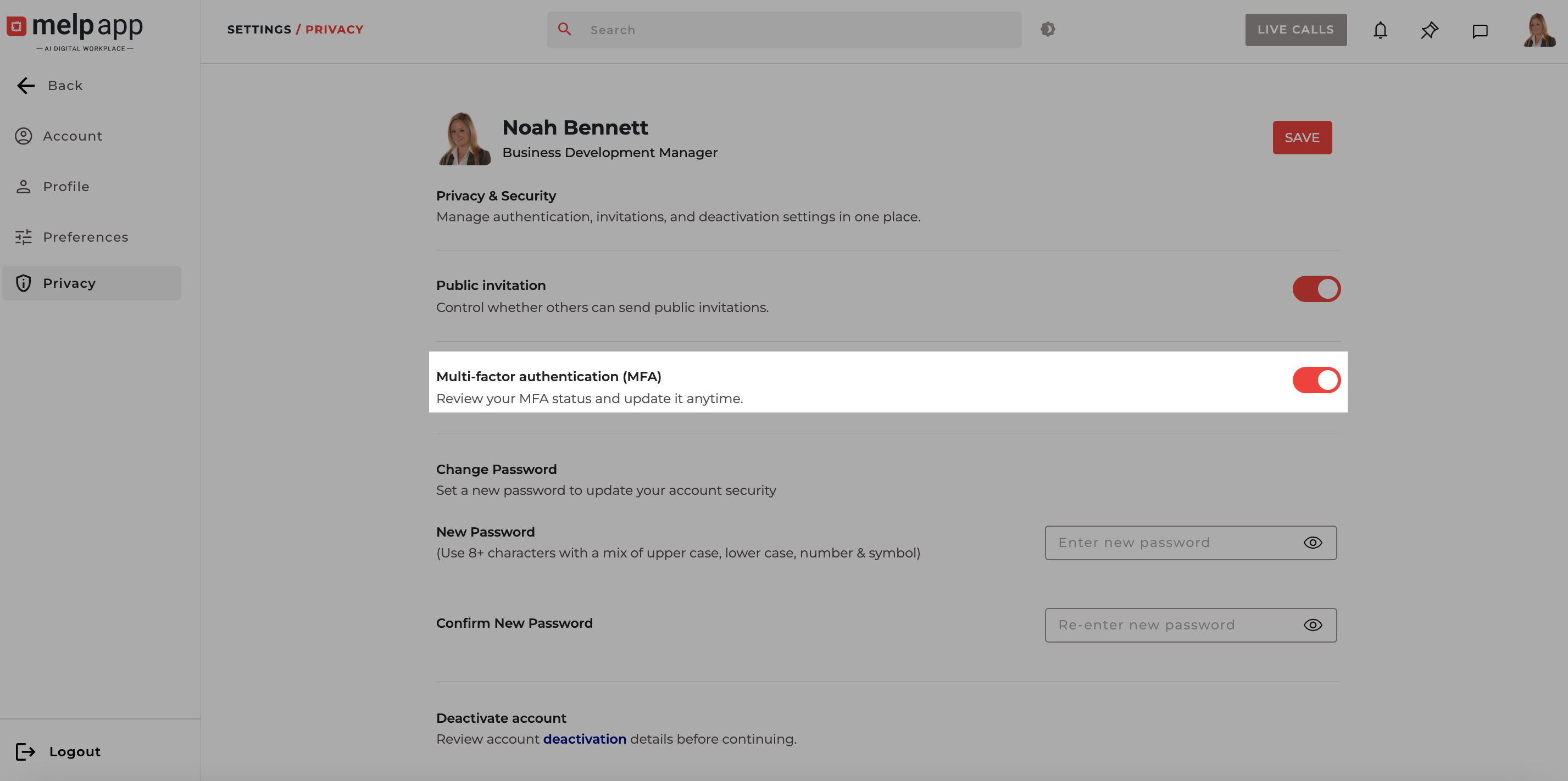
- Click Save to confirm.
Change Your Password
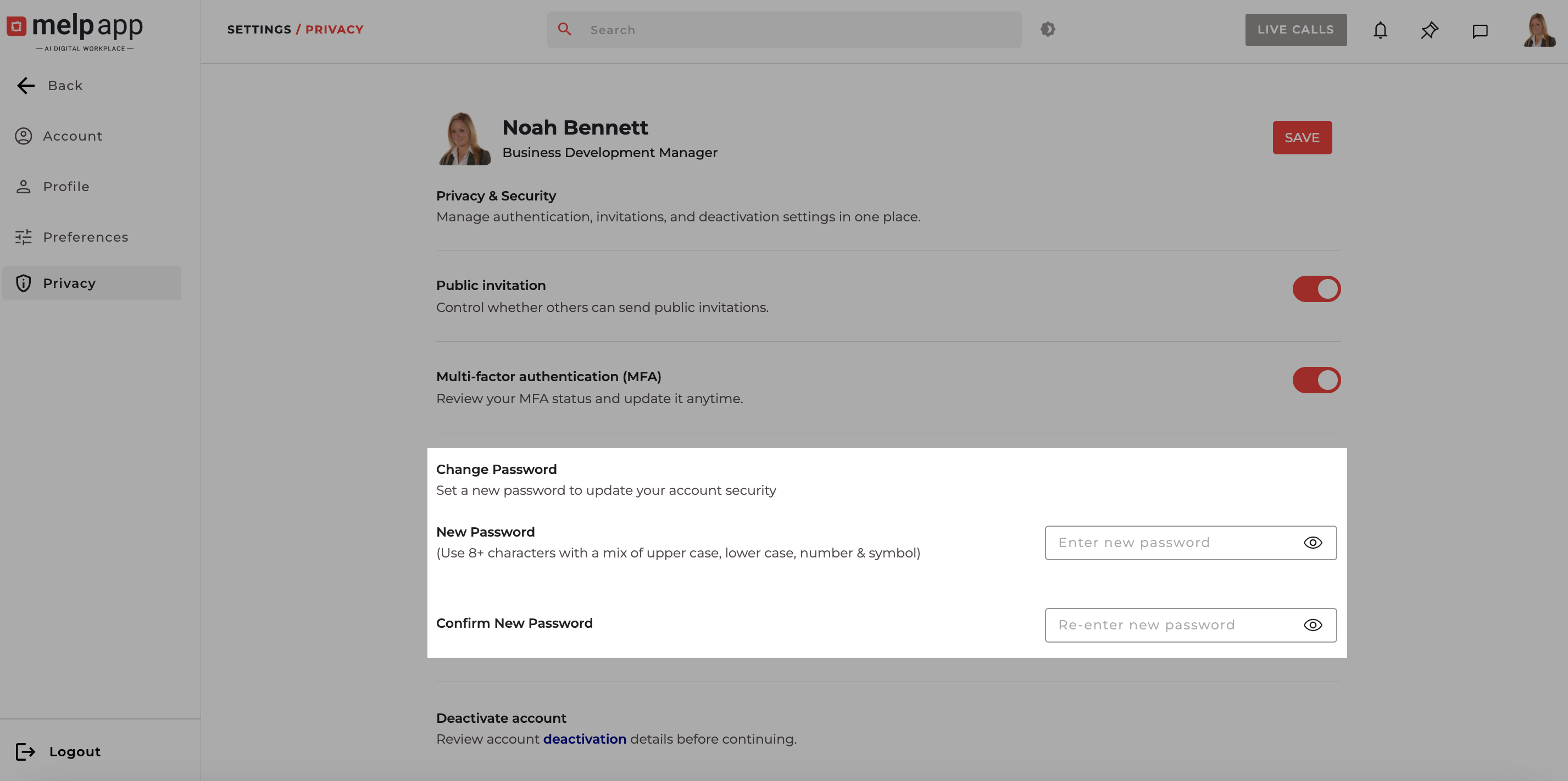
For enhanced security, we recommend updating your melp app password regularly. Changing your password is simple and can be done directly from the Account Settings tab.
Steps to Change Your Password
- Go to Account Settings
- Click on Privacy tab.
- Locate the Change Password section, then enter a new password (at least 8 characters, including uppercase, lowercase, numbers, and symbols), then re-enter it in Confirm New Password to ensure accuracy.
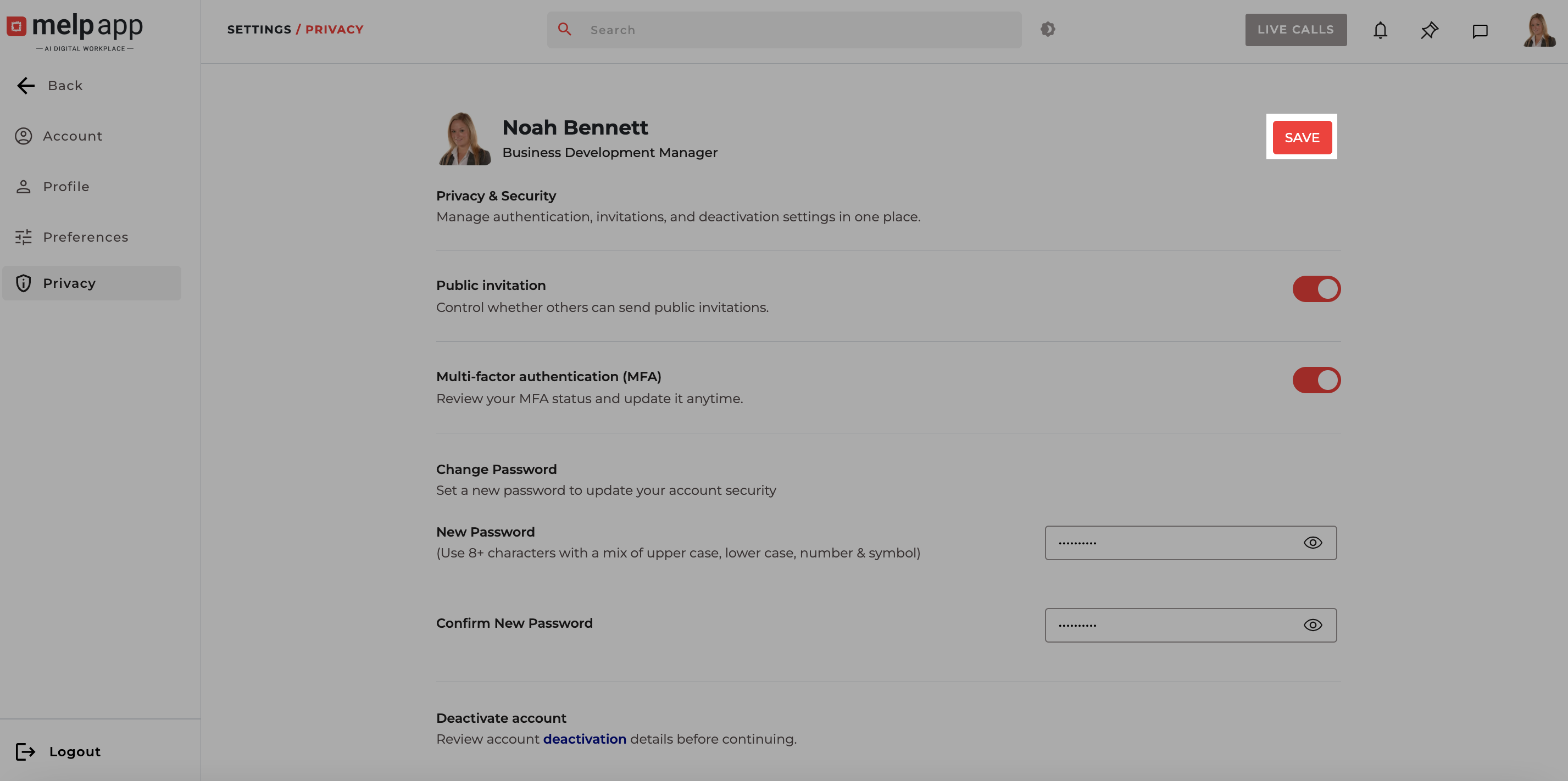
- Click Save and check your registered email for a verification code.
- Enter the code in melp app when prompted.
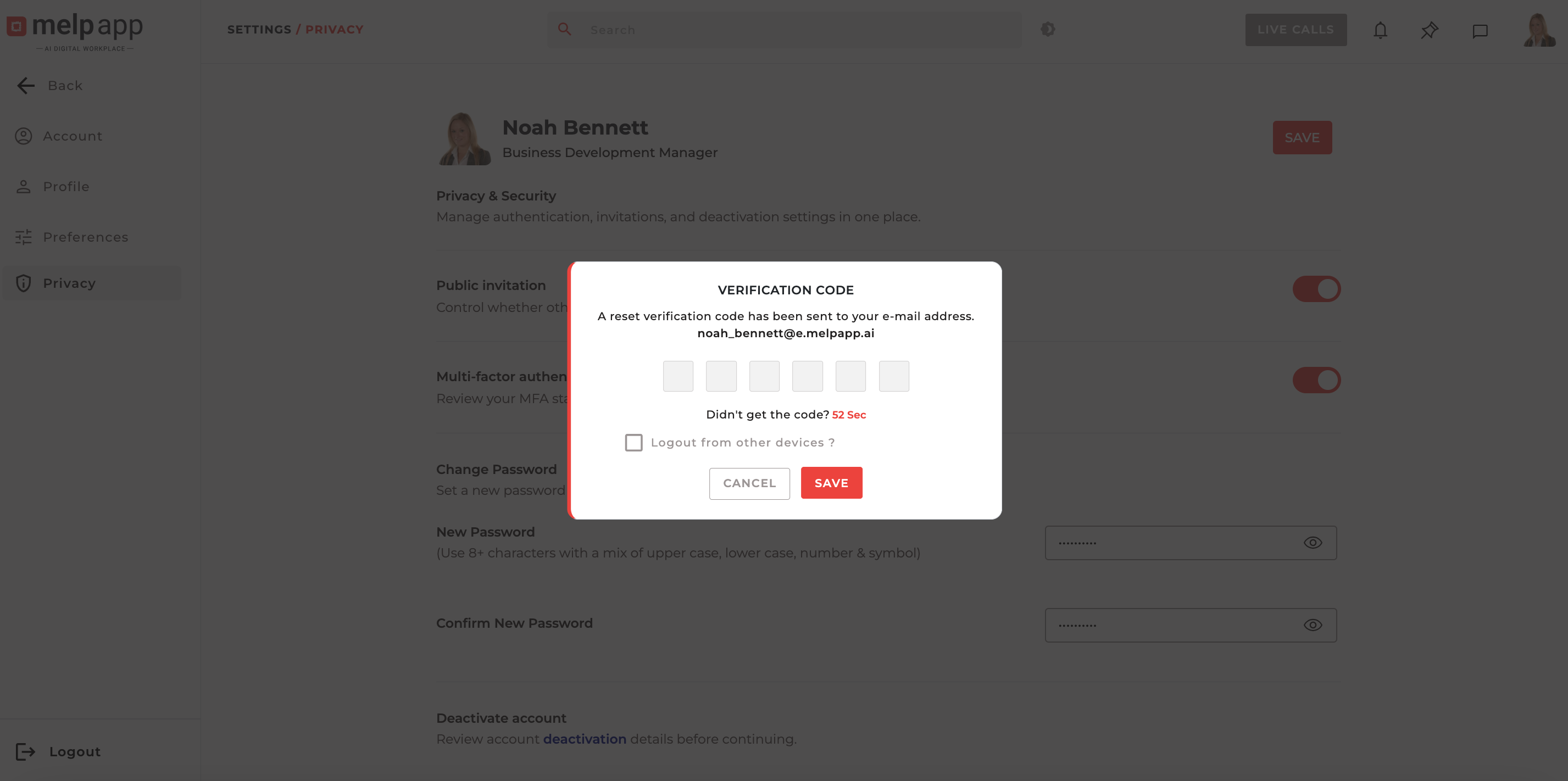
Once verified, your password is updated and ready to use.
Make your password strong and unique to protect your account. The verification email is sent only after you click Save, so keep an eye on your inbox.